

Most WordPress maintenance checklists you will find online list somewhere between fifteen and thirty tasks. They are not wrong, exactly. They are just written as though you have nothing else to do, and as though it is still 2015.
So here is the honest answer up front. A well-set-up WordPress site needs about six things checked once a month, and the whole thing takes 30 to 45 minutes. Not three hours. Not a spreadsheet. Six checks.
The reason those long lists exist is that they bundle everything together: daily monitoring, weekly updates, monthly checks, quarterly audits, annual reviews. Useful as a reference, overwhelming as a routine. And a good chunk of what they list is already happening automatically on your site without you doing anything.
This article covers what genuinely needs your attention each month, what you can safely stop doing, roughly how long each task takes, and how to tell whether you should be doing this yourself or paying someone. If you are weighing up a maintenance quote, the last few sections will help you judge whether it is fair.
Table of Contents
The short version
If you only read one thing, read this table.
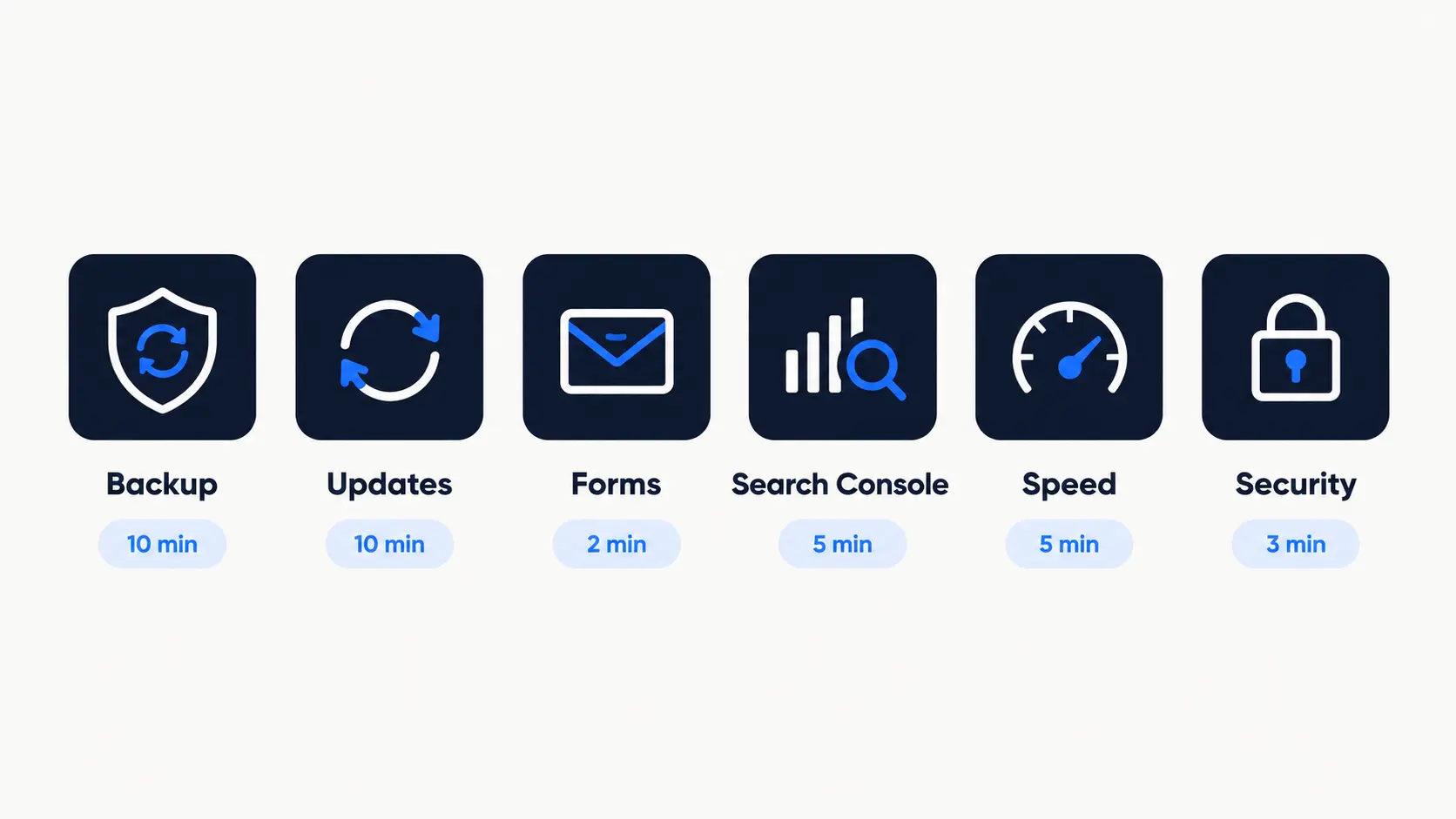
| Monthly task | Why it matters | Time |
|---|---|---|
| Confirm a backup actually restores | An untested backup is a guess, not a safety net | 10 min |
| Review what auto-updated, and update the rest | Catches plugins that quietly broke something | 10 min |
| Submit your own contact form | Silent form failures are the most expensive bug there is | 2 min |
| Check Search Console for new errors | Tells you what Google cannot reach or index | 5 min |
| Run a speed test on two key pages | Sites get slower gradually, never suddenly | 5 min |
| Glance at your security log | Confirms nothing strange is happening | 3 min |
That is the routine. Everything below explains how to do each one properly, and what you can leave alone.
What you can stop doing
This is the part most checklists skip, and it is the part that saves you the most time.
WordPress and your host already handle a lot of what older articles tell you to do by hand.
- Minor core updates. WordPress has installed its own security and maintenance releases automatically since version 3.7, and you cannot easily turn that off from the dashboard. If your site is running the current minor version, it got there on its own.
- Plugin and theme updates. Since WordPress 5.5 you can switch on auto-updates per plugin from the Plugins screen. Most people never notice the toggle. Turn it on for the plugins you trust and the manual work largely disappears.
- Daily backups. Almost every decent host now runs these. Check your hosting panel before you pay for a backup plugin that duplicates what you already have.
- Uptime monitoring. Free services handle this continuously. It is not a monthly task, it is a thing that emails you when something breaks.
Worth checking once: open Plugins in your dashboard and look at the “Automatic updates” column. If every row says “Enable auto-updates”, none of them are on. Switching them on for your stable, well-maintained plugins turns a recurring chore into a monthly glance.
There is a genuine trade-off here, and it is worth being honest about it. Auto-updates mean things occasionally break while you are not looking. That is fine for a brochure site with daily backups. It is riskier for a WooCommerce store taking orders, where an update at the wrong moment costs real money. Larger and more custom sites are usually better served by updating deliberately on a staging copy first.
The actual monthly checklist
1. Confirm a backup restores, not just that one exists
Almost everyone has backups. Far fewer have ever tried restoring one.
A backup that completes successfully can still be useless. It might be missing the database, or capturing a corrupted state, or quietly failing on large files while still reporting success. You find this out at the exact worst moment.
Once a month, restore your most recent backup to a staging site and open it. Check the homepage loads, a blog post loads, and images appear. Ten minutes, and it converts a hope into a fact.
One more thing: keep at least one copy somewhere other than your server. If the server fails, it takes your site and the backups stored on it at the same time.
2. Review what updated, and handle what did not
If auto-updates are on, this is a review rather than a chore.
Open your site and click through three or four important pages: the homepage, a service page, a blog post, the contact page. You are looking for anything visibly broken. Page builder updates in particular can shift layouts in ways nothing will warn you about.
Then deal with what is still pending. Major WordPress releases stay manual on most sites, as do plugins you have chosen not to auto-update. Back up first, then update, then look at the site again.
Common mistake: updating everything at once and then discovering something is broken. If you are updating several plugins manually, do them in small batches and glance at the site between each. It takes two extra minutes and saves you guessing which one caused the problem.
3. Submit your own contact form
This takes two minutes and is the single most valuable item on this list.
Contact forms fail silently and often. An SMTP plugin update, an expired API key, a mail server change at your host, a spam filter deciding your notifications are junk. The form still shows a success message. The enquiry never arrives. You have no idea anything is wrong, because the symptom of a broken form is silence, which looks exactly like a quiet month.
Fill it in as a visitor would and confirm the email lands in your inbox. Do it for every form on the site, including newsletter signups and booking forms.
I have found broken forms on client sites that had been down for weeks. Nobody noticed, because nothing looked wrong.
4. Check Google Search Console
Five minutes in Search Console tells you what Google is struggling with.
Look at two reports. The Pages report shows anything Google could not index, and new 404s. Filter to “Not found” and check whether anything important is listed. The Core Web Vitals report shows whether real visitors are experiencing your site as fast or slow.
Also skim Security & Manual Actions. It should be empty. If it ever is not, that becomes your only priority that day.
If the Pages report throws up problems you do not recognize, my WordPress technical SEO checklist works through each type of indexing issue and what to do about it.
5. Run a speed test on two pages
Not your whole site. Your homepage and your most important service or product page.
Sites do not slow down overnight. They slow down gradually as images get added, plugins accumulate and the database grows, and because it happens over months you stop noticing. A monthly number gives you something to compare against.
Use PageSpeed Insights and record the result somewhere. You are not chasing a perfect score. You are watching for a trend. If last month was 78 and this month is 54, something changed, and you still remember what you did in between.
If the number is heading the wrong way, the usual causes of a slow WordPress site covers where to look first.
6. Glance at your security log
Three minutes. Open your security plugin and look at recent activity.
You are checking for unusual patterns: a spike in failed logins, a login from a country where nobody on your team lives, new user accounts you did not create, or file changes you cannot explain.
Most months this is a non-event, which is the point. You are building a sense of what normal looks like, so that abnormal is obvious when it turns up.
What is not a monthly job
Plenty of genuinely useful maintenance tasks do not need doing every month. Treating them as monthly is how checklists balloon.
| Task | Realistic frequency |
|---|---|
| Database cleanup and optimization | Every 3 to 6 months, or when queries slow down |
| Full broken link audit | Quarterly, or after migrating or restructuring content |
| Reviewing user accounts and removing old access | Quarterly |
| Deleting plugins you no longer use | Quarterly |
| Updating outdated content and old statistics | Twice a year |
| Changing admin passwords | Annually, or immediately after any staff change |
| Reviewing hosting plan and PHP version | Annually |
Do not waste time on: chasing a perfect 100 PageSpeed score, clearing post revisions every week, or running a database optimization plugin on a schedule. On a normal business site these produce almost no measurable benefit, and aggressive database cleaning carries a small risk of deleting something you wanted.
How long this really takes
For a typical small business site with a dozen or so plugins and a handful of pages, the six monthly checks take 30 to 45 minutes, most of which is the backup restore test.
That grows with complexity. A WooCommerce store with payment gateways, shipping integrations and a checkout flow needs more careful testing, because more things can break and the cost of them breaking is higher. A site with fifty plugins takes longer than one with twelve, and is more likely to have something go wrong after an update.
The honest version is this: the work is not difficult. It is just easy to forget, and the consequences of forgetting show up months later, usually all at once.
Should you do this yourself or pay someone?
This is the real question behind most searches for a maintenance checklist, so let me answer it straight rather than steer you toward hiring.
Doing it yourself makes sense when your site is a brochure site or blog, your host handles backups, you are comfortable in the dashboard, and an hour of downtime would be annoying rather than expensive. The six checks above are genuinely within reach of a non-technical owner. Put a recurring reminder in your calendar for the first Monday of the month and work down the list.
Paying someone makes sense when at least one of these is true:
- Your site takes orders or bookings, so downtime costs money directly
- You have custom code, a heavily customized theme, or an unusual plugin stack
- You would not know how to fix a white screen after an update
- You have tried to keep a routine going and it keeps slipping, which is extremely common and not a character flaw
- Your time is worth more than the plan costs, which for most business owners it is
There is a middle option that suits a lot of people: do the monthly checks yourself, and have a developer on call for the moments when something actually breaks. You are paying for expertise when you need it rather than for a routine you could run yourself.
Plans are also not all monthly. Some sites genuinely only need a proper look every quarter or twice a year, and paying for twelve visits when four would do is a common way to overspend.
What a maintenance plan should actually include
Maintenance plans range from roughly $30 to several hundred dollars a month, and the word covers wildly different amounts of work. That range is not useful on its own, so here is what separates the tiers.
| Included | Basic | Mid | Full care |
|---|---|---|---|
| Core, plugin and theme updates | Yes | Yes | Yes |
| Offsite backups | Yes | Yes | Yes |
| Uptime and security monitoring | Usually | Yes | Yes |
| Updates tested on staging first | No | Sometimes | Yes |
| Someone checks the site visually after updating | No | Yes | Yes |
| Form and checkout testing | No | Sometimes | Yes |
| Performance monitoring and fixes | No | Basic | Yes |
| Malware cleanup if you are hacked | No | Sometimes | Yes |
| Small content and design edits | No | Limited hours | Included allowance |
The line that matters most is “someone actually looks at the site.” A cheap plan that runs automated updates and emails you a report is not much more than you would get by switching on auto-updates yourself. What you are really paying for at the higher tiers is a human noticing when something looks wrong, and knowing how to put it back.
Questions to ask before you sign
If you are comparing quotes, these five questions separate a real service from a dashboard subscription.
- Do you test updates somewhere before applying them to my live site? This is the difference between careful and automated.
- What happens if an update breaks something? You want “we roll it back and fix it,” not “you can open a support ticket.”
- Are backups stored away from my hosting? Backups on the same server as the site are not really backups.
- What is not included, and what does that cost? Every plan has a boundary. You want to know where it sits before you need something outside it.
- Will I be dealing with the same person? For a small site, continuity beats a ticket queue. Someone who knows your setup fixes things faster.
A fair warning about pricing: very cheap plans are not a scam, they are just narrow. Thirty dollars a month buys automated updates and a report. That is genuinely fine for a simple blog. It is not enough for a site your business depends on, and the gap only becomes visible on the day something goes wrong.
The bottom line
Monthly WordPress maintenance is six checks and about forty minutes: test a backup restores, review what updated, submit your own contact form, check Search Console, run a speed test, glance at your security log.
Most of the longer lists you will find are either padding or tasks that belong on a quarterly or annual cadence. Turn on auto-updates for the plugins you trust, confirm your host is backing up, and the routine becomes small enough that you will actually keep it going.
That last part is what matters. A short checklist you do every month beats a thorough one you abandon in February.
If your site earns you money and you would rather not carry this yourself, or it has been running untouched for a year or two and you want to know what state it is actually in, my WordPress website maintenance plans cover the monthly routine above, with updates tested on a staging copy before they touch your live site. Monthly, quarterly and six-monthly options, depending on what your site genuinely needs.
Frequently Asked Questions (FAQ)
How often should WordPress be updated?
Minor core releases install themselves automatically. Plugins and themes should be updated at least monthly, and within a day or two if a security vulnerability is announced for something you use. Major WordPress releases are usually worth waiting a couple of weeks on, so any early compatibility issues get reported and patched first.
What happens if I never maintain my WordPress site?
Nothing, for a while, which is what makes it easy to ignore. Over time outdated plugins become known security holes, updates pile up until applying them all at once is genuinely risky, performance degrades, and broken forms or pages go unnoticed. The problems are gradual, then sudden.
Can I just turn on automatic updates and forget about it?
Partly. Auto-updates handle the most repetitive work well and suit simple sites with reliable backups. They do not tell you when an update quietly broke a layout or a form, and they are riskier on stores and custom builds. Auto-updates reduce the work, they do not remove the need to look.
How much does WordPress maintenance cost per month?
Across the market it runs from around $30 a month at the automated end to several hundred for a business site with real oversight, and higher again for ecommerce. What moves the price is how much a human is actually involved: whether updates are tested before going live, whether someone looks at the site afterward, and whether you are covered when something breaks. Plan frequency matters too, since not every site needs attention twelve times a year.
Do I still need maintenance if my host is managed?
Yes, though less of it. Managed hosting usually covers backups, server security and sometimes core updates. It does not test your contact form, notice a broken layout after a plugin update, or watch your Search Console. Hosting looks after the server. Maintenance looks after the site.
Is a monthly backup enough?
No. Backups should run daily, or in real time for a store. What is monthly is the test, confirming that a backup actually restores. Those are two different things, and the second one is the one most people skip.