WordPress Technical SEO Checklist: The Complete Guide
If you’ve read three or four “WordPress technical SEO checklist” articles already and still don’t know where to start, you’re not the problem. Most of those articles are the problem.
They list forty items with almost no explanation of why each one matters, how to actually check it, or what happens if you ignore it. They were written to rank for the keyword, not to fix your website. You close the tab with more anxiety than you started with.
I build and maintain WordPress sites for a living, mostly on Elementor, for clients who range from construction companies to healthcare providers to nonprofits, across Germany, Austria, New Zealand, and India. I audit sites that were “optimized” by three different plugins simultaneously, sites with 40,000 crawled URLs for a business with 12 actual pages, and sites where nobody noticed the staging environment had been indexed for eight months. So this isn’t theoretical. Every item below is something I’ve personally found broken, fixed, or decided wasn’t worth fixing.
That last part matters more than most articles admit: not everything on a technical SEO checklist deserves your time. Half the value of an experienced consultant is telling you what to skip. I’ll do that throughout this guide, clearly marked, so you don’t burn a weekend “fixing” something Google never cared about.
By the end of this article, you’ll know exactly what to check on your WordPress site, in what order, using which tools, and, just as important, which popular advice is outdated or irrelevant in 2026.
What Technical SEO Actually Means (Without the Jargon)
Technical SEO is everything that determines whether Google can find, understand, and trust your pages, separate from whether the content itself is good.
Think of it this way: content SEO is what you say. Technical SEO is whether anyone can hear you say it. You could publish the best article ever written about your topic, but if Googlebot can’t crawl the page, if it’s blocked by a stray noindex tag, if it loads so slowly that Google’s crawler gives up, or if a canonical tag is quietly pointing to the wrong URL, none of that content quality matters. Google never gets far enough to judge it.
Technical SEO covers three connected jobs:
Crawlability. Can search engines physically reach your pages?
Indexability. Once they reach a page, are they allowed and able to add it to their index?
Renderability and experience. Once indexed, does the page load fast, work on mobile, and behave the way Google expects a quality page to behave?
Everything in this checklist falls under one of those three jobs.
Why WordPress Sites Struggle With Technical SEO Specifically
WordPress powers a huge share of the web, which means WordPress-specific technical SEO problems are extremely common, and mostly self-inflicted. Not because WordPress is a bad platform. Because of what gets bolted onto it.
A typical WordPress site accumulates technical debt from four directions at once:
Page builders (Elementor, Divi, Beaver Builder) that generate bloated HTML/CSS and load their own JavaScript and font files, often duplicated across plugins.
SEO plugins configured by whoever set up the site years ago, with settings nobody has revisited since.
Plugin sprawl. A caching plugin, an image optimization plugin, a security plugin, and a page builder, all trying to control the same things (headers, redirects, sitemaps) without knowing the others exist.
Default WordPress behavior that was designed for blogging in 2005 and never updated for how sites are actually built today, like auto-generated tag pages, author archives, and attachment pages.
None of this is fatal on its own. The problem is that it compounds silently. A site doesn’t get technically worse in one dramatic event. It gets worse one unchecked plugin update, one forgotten redirect, and one bloated Elementor section at a time. That’s exactly why a checklist you actually work through, instead of skimming, is worth the hour it takes.
Pro Tip: Before touching anything on this list, get a baseline. Run Google Search Console, a full crawl in Screaming Frog (free up to 500 URLs), and a PageSpeed Insights test on your three most important pages. Save the results. You’ll want to compare before/after once you start fixing things, and you’ll want proof of impact for a client or for yourself.
Part 1: Crawlability, Can Google Even Reach Your Pages?
Crawlability comes first because nothing else matters if Googlebot can’t get to your content in the first place.
Robots.txt
Your robots.txt file tells crawlers which parts of your site they’re allowed to request. WordPress auto-generates a basic one, but almost every site I inspect has either an overly aggressive block or a completely default file that hasn’t been touched.
What to check:
Visit yoursite.com/robots.txt directly.
Confirm you are not blocking /wp-content/uploads/. I still see this on older sites, and it prevents Google from indexing your images entirely.
Confirm your sitemap is referenced at the bottom (Sitemap: https://yoursite.com/sitemap_index.xml).
If you’re on a staging or development URL, confirm it has Disallow: /. See the staging-site section below, because this is where things go badly wrong.
Common Mistake: Blocking /wp-admin/ entirely, including admin-ajax.php. Many plugins (especially page builders and AJAX-based filters) rely on admin-ajax.php being crawlable for certain rendering paths. WordPress’s default robots.txt already handles this correctly, so don’t “improve” it with a stricter custom rule unless you know exactly what you’re blocking.
XML Sitemap
Your sitemap is a map, not a magic indexing switch. It tells Google which URLs you consider important enough to crawl. It doesn’t force indexing, and it doesn’t fix a page that’s otherwise broken or blocked.
What actually matters:
Only include indexable, canonical URLs. If a URL is noindex, redirected, or canonicalized elsewhere, it should not be in the sitemap. Yoast, Rank Math, and SEOPress all handle this correctly by default. The problem shows up when someone manually adds a custom sitemap or a plugin adds a second, conflicting one.
Submit the sitemap in Google Search Console once (Settings > Sitemaps). You don’t need to resubmit it every time you publish.
Check the “Discovered but not indexed” and “Crawled but not indexed” reports in GSC regularly. This is where sitemap-related problems actually surface.
Don’t Waste Time On: Manually pinging Google every time you publish a post by hitting an old-school ping URL. This was relevant a decade ago. Today, if your sitemap is correctly configured and referenced in robots.txt, Google finds new content on its own schedule. For genuinely time-sensitive content, use Search Console’s “Request Indexing” tool on the specific URL instead.
Crawl Budget: When It Matters (and When It Doesn’t)
Crawl budget, the number of pages Googlebot is willing to crawl on your site within a given time, is one of the most misunderstood concepts in WordPress SEO. Most articles mention it as if every site needs to obsess over it. Most sites don’t.
Google has stated directly that crawl budget is a real concern mainly for large sites (roughly 1 million+ URLs, or sites that add thousands of URLs daily) or sites with severe server performance issues. If you run a business site with a few hundred pages, crawl budget is not your bottleneck. Content quality and technical cleanliness are.
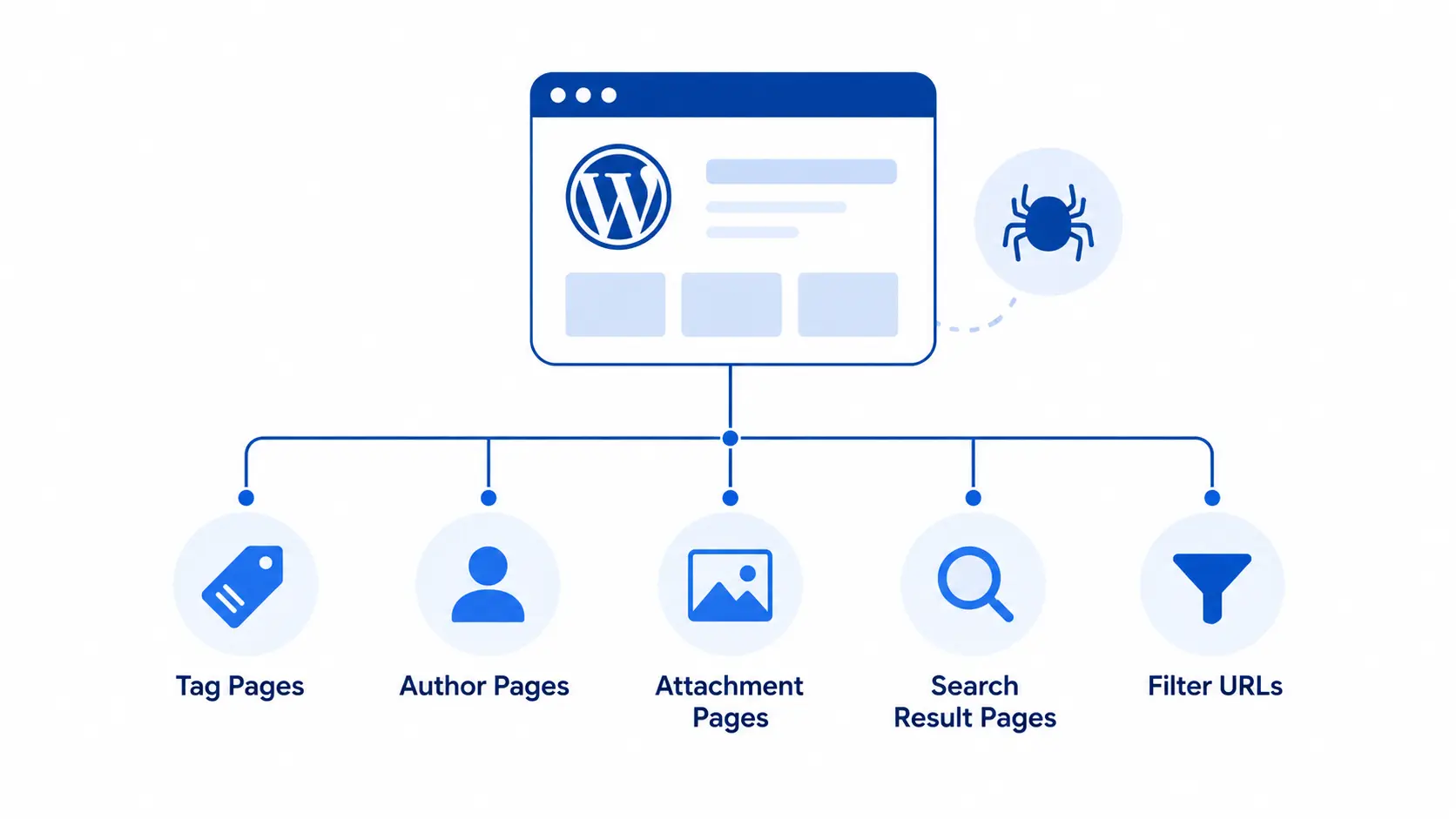
Where crawl budget does become relevant on smaller WordPress sites is crawl waste, meaning Googlebot spending its visit crawling junk instead of your actual pages. This is a WordPress-specific problem, and it’s the one most generic checklists never explain properly.
Common sources of WordPress crawl waste:
Source
Why it happens
What to do
Tag archive pages
WordPress auto-creates a page for every tag, even ones used once
Noindex thin tag archives, or disable tags entirely if you don’t use them for navigation
Author archive pages
Auto-generated for every user, including admins
Noindex on single-author sites, since there’s no value in a duplicate archive of your own posts
Attachment pages
WordPress creates a standalone page for every uploaded image by default
Redirect attachment URLs to the parent post, or disable them (most SEO plugins offer a toggle)
Canonicalize to the clean URL and/or block via robots.txt
Internal search results pages
?s=searchterm pages are technically indexable and add zero value
Noindex site search result pages
WooCommerce attribute/filter combinations
Every filter combination on a shop page can generate a unique crawlable URL
Canonical tags pointing to the base category URL, combined with faceted navigation rules
Where WordPress sites typically waste crawl budget on auto-generated, low-value pages.
Important: Don’t blanket-noindex everything defensively. Tag pages can be useful if you’ve built genuinely distinct, well-populated tag archives with unique intros and 15+ relevant posts each. The rule isn’t “tags are bad.” It’s “thin, auto-generated archive pages are bad.” Judge each archive type on whether it actually serves a searcher, not on the theoretical rule.
JavaScript and Rendering
Google can render JavaScript, but it does so in a second wave, after the initial crawl, and it costs more resources than parsing plain HTML. Elementor and Divi generate mostly server-rendered HTML, so this is a smaller concern than it is for a React/Vue single-page app. Where it does bite WordPress sites:
Lazy-loaded content that depends on scroll-triggered JavaScript to even exist in the DOM. If your content only appears after a user scroll event fires, and there’s no fallback in the initial HTML, Google may not see it during the first rendering pass.
Infinite scroll replacing pagination entirely, with no crawlable paginated URLs underneath it. If Googlebot can’t scroll (it generally doesn’t simulate real scrolling), content past the first “page” may never get crawled.
Custom AJAX filters (common on WooCommerce and real estate/listing sites) that update content via JavaScript without ever changing the URL. Google has nothing to index because there’s no unique, crawlable URL for the filtered state.
The practical fix for all three: always provide a crawlable, URL-addressable fallback. Infinite scroll should sit on top of real paginated URLs (/page/2/, /page/3/). AJAX filters should update the URL with query parameters or fragments that also work if visited directly.
Part 2: Indexability, Is Google Allowed to Index What It Finds?
Noindex Tags and the Staging Site Disaster
This is, without exaggeration, one of the most common and most damaging technical SEO mistakes I encounter on WordPress sites, and it’s almost never caught until traffic has already dropped.
WordPress has a single checkbox, under Settings > Reading, called “Discourage search engines from indexing this site.” When a developer builds a site on a staging subdomain, this box gets checked (correctly). The problem happens at launch: the site gets migrated to the live domain, and that setting either doesn’t carry over correctly, or, far more often, the staging site itself stays live and indexable after launch, sitting at some forgotten subdomain, fully crawlable, competing with the real site for rankings and creating a duplicate content mess.
Checklist:
Confirm Settings > Reading shows the box unchecked on your live production site.
Search site:staging.yoursite.com or check your hosting panel for any staging subdomains that are still publicly accessible.
If a staging site exists and must stay online, password-protect it at the server level (not just WordPress-level password protection, which Google can sometimes still index the login-wrapped page for) and add a hard Disallow: / in its robots.txt as a second layer.
Check X-Robots-Tag HTTP headers too. Some caching or security plugins add noindex directives at the header level, which won’t show up if you only check the page’s meta tags.
Common Mistake: Relying on a single method to keep a staging site out of the index. Use at least two of: password protection, robots.txt disallow, and a noindex meta tag. Any one of them alone can fail silently: a plugin update, a caching layer serving a stale version of robots.txt, or a CDN misconfiguration can all quietly undo a single point of protection.
Canonical Tags
A canonical tag tells Google “if you find multiple versions of this content, this is the one that counts.” On WordPress, canonicals are usually handled automatically by your SEO plugin, but “usually” is doing a lot of work in that sentence.
Where canonical conflicts actually happen on WordPress:
Page builders adding their own canonical logic. Some Elementor templates, particularly older or third-party ones, insert a self-referencing canonical directly into the template header, which can conflict with what your SEO plugin sets, especially on dynamic templates (WooCommerce product templates, custom post type archives).
WWW vs non-WWW, or HTTP vs HTTPS inconsistency, where canonical tags point to one version while internal links and the sitemap use another.
Pagination without proper canonical handling. Page 2 of a category archive should canonicalize to itself, not to page 1 (a very old and now-outdated piece of advice that some plugins still implement incorrectly).
AMP pages (if you still run them) pointing their canonical to the non-AMP version. Check this if you set up AMP years ago and haven’t touched it since.
How to check it properly: don’t just view-source one page. Use Screaming Frog, export the canonical column for every URL, and look for pages where the canonical doesn’t match the URL itself, or where multiple pages canonicalize to a single URL unexpectedly.
Duplicate Content on WordPress
True duplicate content penalties are rarer than people think. Google is generally good at picking a canonical version and moving on. The real cost of WordPress duplicate content isn’t a penalty; it’s diluted ranking signals and wasted crawl budget, because Google is spending time and attention on multiple URLs that should be one.
Typical WordPress duplicate content sources:
Category and tag archives showing full post content instead of excerpts, effectively duplicating every post
WooCommerce products assigned to multiple categories, generating multiple crawlable URLs for the same product
URL parameters from tracking (?utm_source=), session IDs, or filters creating near-infinite duplicate variations of the same page
HTTP and HTTPS, or www and non-www, both resolving without a redirect
The fix for most of these is the same: pick one canonical version, redirect or canonicalize everything else to it, and set archive pages to show excerpts rather than full content (Settings > Reading > “For each post in a feed, include: Summary”).
Part 3: Site Structure, URLs, and Internal Linking
URL Structure
WordPress’s default “Plain” permalink structure (?p=123) is genuinely bad for SEO and for humans. If your site still uses it, this is a rare case of an easy, high-impact fix.
Recommended structure:/%postname%/ for most content sites. For larger sites with real content hierarchies, /%category%/%postname%/ can help both users and search engines understand structure, but only if your category structure is genuinely stable. If you rename or restructure categories often, this creates a redirect headache every time, so weigh that trade-off honestly before choosing it.
Rules that still hold up:
Keep URLs short, descriptive, and lowercase.
Use hyphens, never underscores, to separate words.
Avoid stopwords stuffing and unnecessary parameters.
Don’t include dates in URLs unless the content is genuinely time-bound (news, events). Dated URLs make evergreen content look stale and complicate future updates.
Important: If you change your permalink structure on an established site, you are creating a mass-redirect event. Do not do this without a full URL-to-URL 301 redirect map. Changing permalink structure without redirects is one of the fastest ways to lose rankings overnight.
Internal Linking
Internal linking is the most underused technical SEO lever on WordPress sites, mostly because it’s manual work that doesn’t feel technical. It is, though. It directly affects crawl paths and how link equity flows through your site.
Practical checklist:
Every important page should be reachable within 3 clicks from the homepage.
Orphan pages (pages with zero internal links pointing to them) should be found and fixed. Screaming Frog’s “Orphan Pages” report (via a sitemap + crawl comparison) finds these reliably.
Link with descriptive, natural anchor text, not “click here” or the bare URL.
New content should link to relevant older content, and, just as important, older content should be updated to link forward to new, relevant content. Most sites do this once and never revisit it.
Avoid linking to redirected URLs internally. Every internal link should point directly to the final destination URL, not through a chain of 301s.
Breadcrumbs
Breadcrumbs help both users and Google understand where a page sits in your site hierarchy, and, when marked up with BreadcrumbList structured data, they can appear directly in search results, which improves click-through rate even without a ranking change.
Most SEO plugins (Yoast, Rank Math, SEOPress) generate breadcrumb markup automatically; Elementor Pro also has a native breadcrumb widget. The main mistake I see is running two breadcrumb systems simultaneously, one from the SEO plugin and one from the theme or builder, which either creates visual duplication or conflicting structured data. Pick one source of truth and disable the other.
Pagination
Category archives, blog listings, and WooCommerce shop pages with pagination (/page/2/, /page/3/) used to require rel="next"/rel="prev" tags. Google officially stopped using these signals years ago, so don’t waste time implementing them if you don’t already have them. This is genuinely outdated advice that still appears on plenty of “checklist” articles.
What still matters: each paginated page needs a self-referencing canonical (not canonicalized to page 1), a unique enough title/meta if possible, and it shouldn’t be blocked by robots.txt or noindexed unless you have a specific reason (e.g., very deep, thin pagination on a WooCommerce shop with hundreds of pages, where only the first few pages carry real value).
Part 4: Speed, Core Web Vitals, and Real Performance
This is the section where I’ll diverge most from generic advice, because “improve page speed” without specifics is useless.
Core Web Vitals in 2026
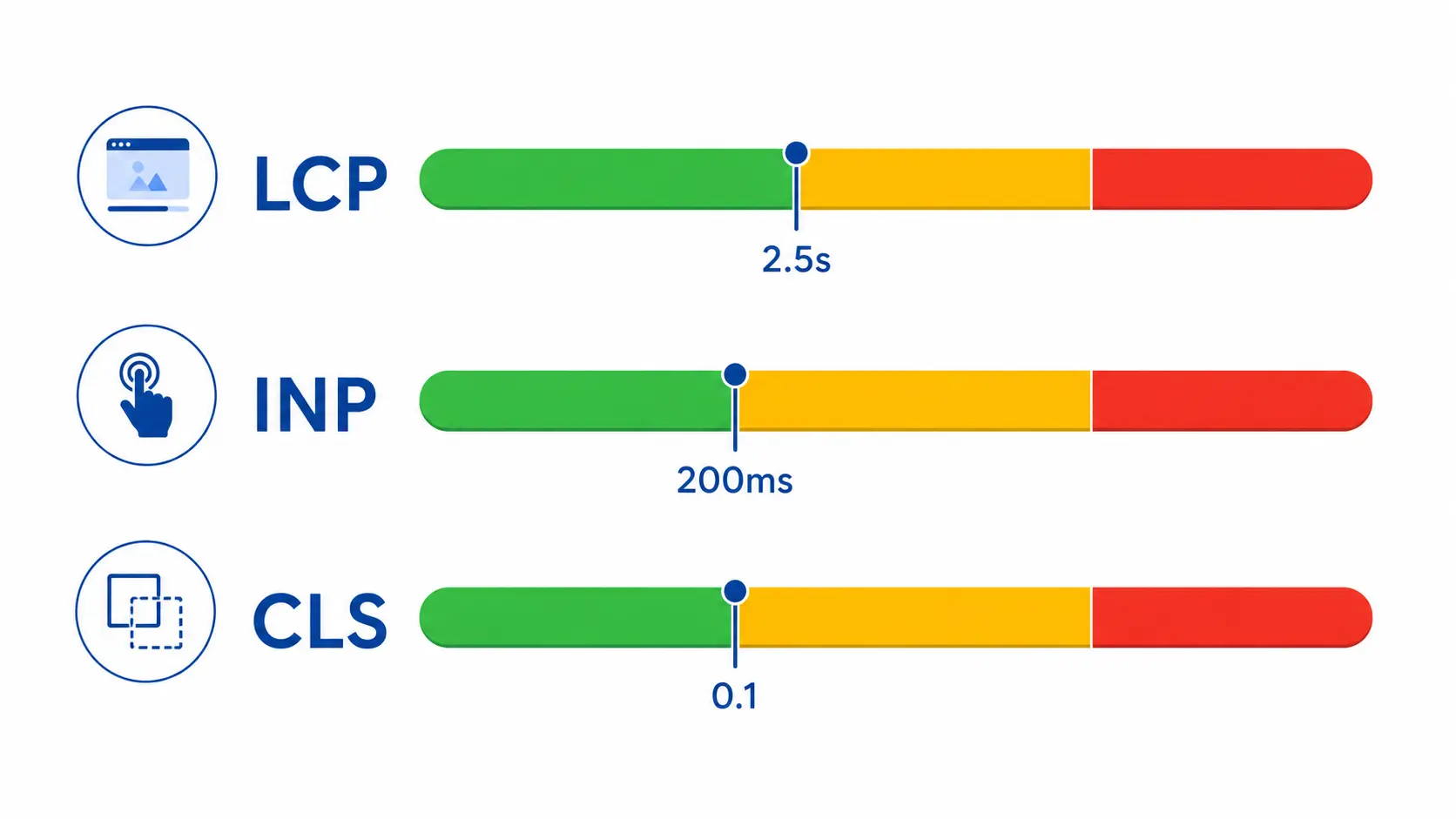
Core Web Vitals are three measurements Google uses to judge real-world user experience, evaluated at the 75th percentile of actual visitor data (not lab data) via the Chrome User Experience Report:
Metric
Measures
Good
Needs Improvement
Poor
LCP (Largest Contentful Paint)
How fast the main content loads
≤ 2.5s
2.5s to 4s
> 4s
INP (Interaction to Next Paint)
How responsive the page feels to clicks, taps, and keypresses
≤ 200ms
200ms to 500ms
> 500ms
CLS (Cumulative Layout Shift)
How visually stable the page is while loading
< 0.1
0.1 to 0.25
> 0.25
INP replaced First Input Delay (FID) as the responsiveness metric in March 2024, and it’s a stricter test. It measures every interaction across the full page lifecycle, not just the first one. This matters specifically for WordPress sites built with heavy page builders and lots of interactive widgets (accordions, sliders, popups, AJAX filters), because INP problems usually come from JavaScript that’s still executing when a user tries to interact, a very common Elementor/WooCommerce pattern. If you need to fix these metrics rather than just understand them, I’ve written a separate guide on how to improve Core Web Vitals in WordPress.
The three Core Web Vitals metrics Google measures from real visitor data, and the thresholds that count as “Good.”
What actually moves each metric on WordPress:
LCP: almost always the hero image or heading at the top of the page. Fix: serve it in a modern format (WebP/AVIF), size it correctly (don’t serve a 3000px image into a 600px container), and, critically, do not lazy-load the LCP element itself. This is a mistake I see constantly: page builders lazy-load every image indiscriminately, including the one Google is timing as your LCP, which actively delays it.
INP: usually third-party scripts (chat widgets, analytics, ad scripts, font-loading scripts) and page builder JavaScript blocking the main thread. Fix: defer non-critical JavaScript, audit every plugin that injects a script on every page (many do, even when unused on that page), and test real interactions, not just load time.
CLS: almost always images or ads without explicit dimensions, web fonts causing a layout jump (FOIT/FOUT), or content injected above existing content (cookie banners, sticky headers appearing after load). Fix: always set width/height attributes on images (WordPress does this automatically for uploaded images, but Elementor background images and dynamically inserted images often skip it), and reserve space for ad slots and embeds before they load.
Pro Tip: Test with real field data, not just PageSpeed Insights lab scores. Google Search Console’s Core Web Vitals report and the CrUX dashboard show what your actual visitors experienced, which is what Google actually uses for ranking. A page can score 95 in a lab test and still fail INP in the real world if your average visitor is on a mid-range Android phone with slower JavaScript execution.
Page Speed Beyond Core Web Vitals
Area
Common WordPress Issue
Fix
Render-blocking resources
CSS/JS loaded in <head> without defer/async, blocking first paint
Use a caching plugin with critical CSS generation (WP Rocket, FlyingPress) or manually defer non-critical scripts
Font loading
Google Fonts or Elementor custom fonts loaded render-blocking, causing FOIT
Self-host fonts, use font-display: swap, preload the primary font file
Database bloat
Years of post revisions, spam comments, and transients slowing every query
Clean with WP-Optimize or Advanced Database Cleaner; limit post revisions via wp-config.php
Server response time (TTFB)
Cheap shared hosting under real traffic load
This is a hosting problem, not a plugin problem. See the hosting section below.
Compression
Gzip/Brotli not enabled at server level
Enable via hosting panel or .htaccess; most managed WordPress hosts do this by default
Caching
No page caching, or caching plugin misconfigured (caching logged-in users, caching cart pages on WooCommerce)
Set up a proper caching plugin and explicitly exclude dynamic pages (cart, checkout, account)
Image Optimization
Images are still the single biggest weight problem on most WordPress sites I audit, usually because someone uploaded camera-resolution photos directly into a page builder without resizing.
Checklist:
Compress every image before or immediately after upload (ShortPixel, Imagify, or Squoosh for manual work).
Use modern formats: WordPress has had native AVIF support since version 6.5 (March 2024), and WebP support since 5.8. AVIF files are typically 30 to 50% smaller than WebP at equivalent visual quality, with browser support now above 93% globally. Serve AVIF with a WebP or JPEG fallback for older browsers.
Always fill in alt text, for accessibility first and SEO second. Never keyword-stuff alt text; describe what’s actually in the image.
Use descriptive filenames before upload (wordpress-seo-checklist-diagram.webp, not IMG_4821.jpg). This still contributes a small semantic signal.
Set explicit width and height attributes on every image to prevent layout shift.
Lazy-load everything except the first visible image on the page (usually your LCP element).
CDN and Caching Pitfalls
A CDN and caching layer should make a site faster and more resilient, but I’ve fixed more sites broken by CDN misconfiguration than sites that genuinely needed one and didn’t have it.
Common Cloudflare/CDN mistakes on WordPress:
Caching HTML for logged-in users or WooCommerce cart/account pages, causing one customer to see another customer’s cart contents. This is a serious bug, not just an SEO issue. Check your page rules exclude /cart/, /checkout/, /my-account/.
Over-aggressive minification breaking Elementor’s JavaScript, causing broken interactive elements site-wide after a Cloudflare setting change.
Serving stale cached pages after content updates, because the CDN cache wasn’t purged and the WordPress caching plugin doesn’t know to tell it to.
“I’m Under Attack Mode” left on permanently, which inserts a JavaScript challenge that can interfere with how Googlebot renders the page.
Don’t Waste Time On: Switching CDN providers as a first troubleshooting step when a site feels slow. In the vast majority of cases I’ve investigated, the actual bottleneck was unoptimized images, an unindexed slow database query, or bloated page builder output, not the CDN. Fix the actual weight of the page before blaming delivery infrastructure.
Part 5: Structured Data (Schema Markup)
Structured data doesn’t directly boost rankings, but it does help Google understand your content precisely, and it’s what earns you rich results, like star ratings, FAQ dropdowns, breadcrumbs, recipe cards, and product pricing, directly in search results.
What to actually implement, by relevance:
Organization/LocalBusiness schema. Every site should have this on the homepage or About page. Non-negotiable basic trust signal.
BreadcrumbList. Usually handled automatically by your SEO plugin.
Article/BlogPosting schema. For blog content, handled automatically by Yoast, Rank Math, and SEOPress.
Product schema. Essential for WooCommerce; get pricing, availability, and review data correct, because errors here can trigger manual actions if they’re seen as misleading.
FAQPage schema. Genuinely useful when you have real FAQ content, but don’t force an FAQ section onto every page purely to earn the schema. Google has also scaled back how often FAQ rich results actually display, so treat it as a nice-to-have, not a guaranteed win.
Review/AggregateRating schema. Only mark this up if the reviews are real, visible on the page, and verifiable. Fake or hidden review markup is one of the more common causes of manual structured data penalties.
How to check it: Google’s Rich Results Test and the Search Console “Enhancements” reports are the two tools that matter here. Ignore third-party “schema score” tools that grade you on markup Google doesn’t actually use for rich results. They create work that doesn’t move the needle.
Part 6: Redirects, 404s, and Broken Links
Redirects
A 301 redirect passes the vast majority of ranking signal to the new URL, but WordPress sites accumulate redirect problems in predictable ways.
Checklist:
Audit for redirect chains (A to B to C instead of A to C directly). Every plugin migration, permalink change, and domain move tends to leave one of these behind, and chains slow down both crawlers and real users. Screaming Frog’s redirect chain report finds these in minutes.
Confirm redirects are 301 (permanent), not 302 (temporary), for anything meant to be permanent. Some page builders and redirect plugins default to 302.
Never redirect everything to the homepage as a lazy fix for broken URLs. A redirect should go to the most relevant replacement content. Mass-redirecting unrelated old URLs to the homepage is treated by Google as a soft-404 pattern and wastes the opportunity to actually help the user who followed that old link.
After any site migration or restructuring, generate and keep a permanent redirect map document. You will need it again.
404 Errors and Broken Links
A reasonable number of 404s isn’t inherently harmful. It’s a normal part of how the web ages. What matters is whether you’re linking to them internally, and whether important pages are 404ing by accident.
Checklist:
Check Search Console’s “Not Found (404)” report under Pages, and cross-reference against your internal link structure. A 404 that nothing links to is low priority; a 404 with dozens of internal links pointing to it needs an immediate redirect.
Run a broken link check (Screaming Frog, or a plugin like Broken Link Checker used sparingly, since it can add real overhead if run constantly) after any content migration, theme change, or plugin removal.
Design a genuinely useful custom 404 page: search bar, links to popular content, clear navigation. It won’t fix the technical issue, but it recovers some of the lost user.
Part 7: HTTPS and Security
HTTPS has been a confirmed ranking signal since 2014, and by 2026 there’s no legitimate reason for a business site to run on plain HTTP. If yours somehow still does, this is priority zero, above everything else in this article.
Checklist:
SSL certificate installed and auto-renewing (Let’s Encrypt via your host is the standard, free option).
All HTTP requests 301 redirect to HTTPS. Check this at the domain root, not just individual pages.
No mixed content warnings (HTTP images, scripts, or stylesheets loaded on an HTTPS page). Check via browser dev tools console or a tool like Why No Padlock.
HSTS header configured, ideally, though this is a smaller signal than the basics above.
Keep WordPress core, theme, and every plugin updated. Outdated plugins are the single most common attack vector for WordPress site compromises, and a hacked site gets deindexed or flagged with a “This site may be hacked” warning in search results, a far worse SEO outcome than any on-page issue in this checklist.
Limit login attempts and use two-factor authentication on admin accounts. A compromised site is a technical SEO catastrophe, not a minor inconvenience.
Important: If you ever see a sudden ranking or traffic collapse with no clear cause, check Search Console’s Security Issues report before anything else. A malware injection or spam content injection from a hacked plugin is a far more common cause of sudden drops than an algorithm update.
Part 8: WordPress-Specific Traps Most Checklists Skip
This is the section I think earns this article its place: the issues that are specific to how WordPress, page builders, and common plugin combinations actually behave, which generic SEO checklists never cover because they’re written for “websites” in the abstract, not WordPress specifically.
Elementor-Specific SEO Considerations
Elementor generates significantly more HTML/CSS per section than a hand-coded page. This isn’t inherently bad for SEO. Google renders it fine, but it does add weight. Use Elementor’s own “Optimized CSS Loading” and “Improved Asset Loading” experiments (Elementor > Settings > Features). Both are stable enough now to run in production and meaningfully reduce unused CSS/JS shipped per page.
Global widgets and templates can create unexpected duplicate H1s if a template containing an H1 is used across multiple pages without being adjusted. Audit your header templates specifically for this.
Popups. Elementor Pro popups that auto-trigger on page load can hurt both CLS (if not properly contained) and can occasionally be flagged in Google’s “intrusive interstitial” guidance if they cover the main content immediately on a mobile visit from search. Delay triggers by a few seconds, or trigger on scroll/exit-intent instead of immediate load.
Icon fonts and unused widget CSS/JS. Elementor loads CSS for every widget type used anywhere on the site, on every page, by default in older configurations. Enable the “Improved Asset Loading” experiment so pages only load the CSS/JS for widgets actually used on that specific page.
Gutenberg (Block Editor) Differences
Gutenberg produces cleaner, lighter HTML than most page builders by default, which is a genuine performance advantage. The main technical SEO consideration is different: block patterns and reusable blocks can create the same “duplicate H1 across templates” problem as Elementor global widgets if not checked, and heavy use of embed blocks (especially social embeds) can quietly load third-party JavaScript that hurts INP just as much as any page builder script would.
WooCommerce SEO Considerations
WooCommerce introduces its own category of technical SEO issues:
Product variation URLs and out-of-stock product handling. Decide deliberately whether out-of-stock products get noindexed, redirected, or kept live with clear “back in stock” messaging (deleting them outright and 404ing wastes existing backlinks and rankings).
Faceted navigation / filtering generating enormous numbers of crawlable parameter URLs (as covered in the crawl budget section). This is the single largest crawl waste source I see on WooCommerce sites specifically.
Category vs. product canonical conflicts when a product belongs to multiple categories. Decide on one canonical category per product and stick to it.
Reviews and schema accuracy. WooCommerce’s built-in review schema is generally reliable, but third-party review plugins sometimes inject conflicting or duplicate AggregateRating markup. Check for duplicates in Rich Results Test.
AI-Generated Content Considerations
Google has been consistent on this point: it does not penalize content for being AI-assisted. It penalizes content for being low-quality, unhelpful, or created primarily to manipulate rankings, regardless of how it was produced. The technical SEO risk with AI-generated content on WordPress isn’t a special AI-detection penalty; it’s the practical pattern of publishing large volumes of thin, near-duplicate content quickly, which triggers the same quality-based ranking suppression that mass low-effort human content always has. If you’re using AI tools to help draft content, the technical checklist item is the same as it’s always been: make sure each published page is genuinely useful, accurate, and distinct enough to justify its own URL, not a numbers game of publishing volume.
Log File Analysis (When It’s Worth Doing)
Log file analysis, reading your raw server access logs to see exactly what Googlebot crawled, how often, and how it responded, is genuinely valuable for larger or more complex sites, and genuinely overkill for a small business brochure site.
When it’s worth the effort: e-commerce sites with thousands of products, sites that have had persistent “crawled but not indexed” problems that Search Console data alone hasn’t explained, or sites migrating domains where you want to confirm Googlebot is finding and following the new redirect map correctly.
When to skip it: a site under a few hundred pages with no unexplained indexing problems. The Search Console Coverage and Crawl Stats reports give you enough signal without needing raw log access, which most shared hosting doesn’t even expose cleanly anyway.
International SEO (If Relevant)
If you serve multiple countries or languages, which comes up often for me given clients across Germany, Austria, and New Zealand, hreflang implementation is the piece most WordPress sites get wrong, usually because it was set up once by a plugin (WPML, Polylang) and never audited.
Checklist:
Every translated page needs reciprocal hreflang tags. If page A points to page B, page B must point back to page A. One-directional hreflang is invalid and often ignored by Google.
Include a self-referencing hreflang tag on every page (the page should reference itself in its own language/region).
Include an x-default tag for the version shown to users who don’t match any specified language/region.
Verify with Search Console’s International Targeting report or a dedicated hreflang validator. Manual checking across dozens of language pairs is error-prone.
Priority Matrix: What to Fix First
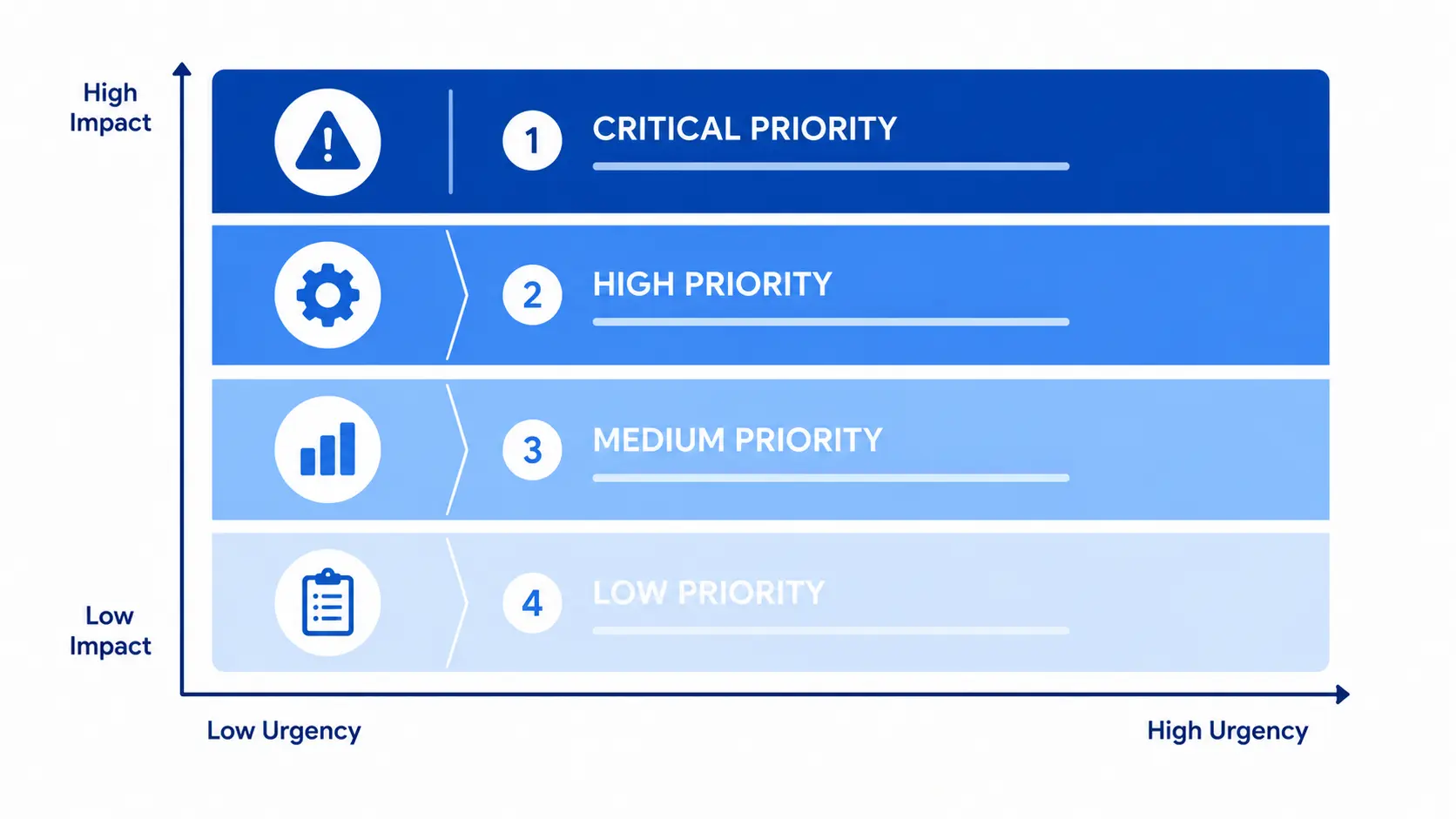
Not everything on this page carries equal weight. Here’s how I’d actually triage a real audit.
Priority
Issue Type
Examples
Critical, fix today
Blocks indexing entirely, or is a security risk
Site accidentally noindexed, staging site indexed and live, no HTTPS, hacked/malware flag, robots.txt blocking the whole site
High, fix this week
Actively hurting rankings or user experience at scale
Broken canonical tags, major Core Web Vitals failures on key pages, redirect chains on high-traffic URLs, missing XML sitemap
Paid options generally require far less manual configuration to get right
Redirect management
Redirection plugin (free)
None needed
Free plugin is sufficient for the vast majority of sites
Recommended Plugin Stack (and What to Avoid Combining)
Category
Recommended
Avoid Running Together
SEO Suite
Rank Math or Yoast SEO (pick one)
Never run two full SEO plugins simultaneously. They’ll fight over sitemap generation, meta tags, and schema, often silently overwriting each other.
Caching
WP Rocket, FlyingPress, or LiteSpeed Cache (if on LiteSpeed server)
Don’t stack two caching plugins. Pick one and configure it fully.
Image Optimization
ShortPixel or Imagify
Avoid combining with a caching plugin’s built-in image optimizer if both are active. You can end up compressing the same images twice or serving conflicting formats.
Security
Wordfence or Sucuri
Fine to run alongside others, but disable overlapping firewall features if your host already provides one
Redirects
Redirection (free)
Avoid letting your SEO plugin and a separate redirect plugin and your CDN all manage redirects independently. Pick one source of truth.
Hosting Considerations
Hosting is technical SEO’s most underrated lever, because it affects your baseline server response time (TTFB), the very first number in your entire loading sequence, before any plugin or optimization technique gets a chance to help. If your site feels sluggish and you are not sure where to start looking, I’ve covered the full list of culprits in why WordPress sites run slow.
Shared hosting is fine for a low-traffic brochure site, but under real traffic (or a traffic spike from a successful campaign) it’s usually the actual bottleneck behind “my site randomly gets slow,” not a plugin.
Managed WordPress hosting (Kinsta, WP Engine, Cloudways, or a well-run VPS with server-level caching) generally delivers meaningfully better TTFB and handles PHP execution more efficiently. This is often a bigger single win than any plugin-level optimization.
Server location relative to your primary audience matters for raw latency; combine it with a CDN for global reach rather than treating one as a substitute for the other.
PHP version. Run the latest stable PHP version your plugins support (PHP 8.2/8.3 as of 2026). This alone can meaningfully improve server response time on sites still running PHP 7.x.
Monthly Maintenance Checklist
Technical SEO isn’t a one-time project. It degrades quietly if nobody revisits it. Here’s a realistic monthly routine:
Check Search Console Coverage report for new errors or excluded pages
Check Core Web Vitals report for any pages that dropped into “Poor”
Review and fix any new 404s with internal links pointing to them
Confirm all plugins, themes, and WordPress core are updated
Spot-check that staging/dev environments are still properly blocked
Review new redirect chains created by recent content changes
Skim Search Console Security Issues (should always be empty)
Check for newly orphaned pages after recent publishing or menu changes
The Final Printable WordPress Technical SEO Checklist
Crawlability
Robots.txt reviewed, not blocking uploads or admin-ajax.php
XML sitemap live, submitted in Search Console, contains only indexable canonical URLs
Tag, author, and attachment archive pages reviewed and noindexed if thin
Query-parameter and search-result URLs handled via canonical or robots rules
Infinite scroll and AJAX filters have crawlable URL fallbacks
Indexability
“Discourage search engines” setting confirmed off on production
Staging/dev environments password-protected and blocked
Canonical tags audited across templates, especially page builder templates
Archive pages set to show excerpts, not full content
Site Structure
Clean permalink structure (not default “Plain”)
No orphan pages
Internal links point to final URLs, not redirect chains
Breadcrumbs implemented once, from a single source
Performance
LCP, INP, and CLS all in “Good” range in Search Console field data
LCP element not lazy-loaded
Images compressed, modern format (WebP/AVIF), correctly sized
Render-blocking CSS/JS deferred or eliminated
Fonts self-hosted or preloaded with font-display: swap
Caching configured, dynamic pages excluded
Structured Data
Organization/LocalBusiness schema present
Article/Product/FAQ schema accurate and validated
No duplicate or conflicting schema from multiple plugins
Redirects & Errors
No redirect chains on high-traffic URLs
404s with internal links fixed
Custom 404 page in place
Security
HTTPS enforced site-wide, no mixed content
WordPress core, theme, plugins fully updated
No active Search Console security issues
If your site passes every box above, you’re technically ahead of the large majority of WordPress sites live today. From here, technical SEO stops being a project and becomes a habit: a monthly ten-minute check instead of an occasional emergency.
Frequently Asked Questions (FAQ)
How long does it take to see results from technical SEO fixes on WordPress?
Crawling and indexing changes (fixing a noindex mistake, unblocking robots.txt) can show up within days. Ranking improvements from Core Web Vitals or structural fixes typically take several weeks to a few months, since Google needs to recrawl, re-render, and accumulate enough field data to reassess the page.
Do I need an SEO plugin, or can I handle technical SEO manually?
For anything beyond a single static page, use an SEO plugin (Yoast or Rank Math). Manually managing meta tags, sitemaps, and schema across dozens of pages invites the exact inconsistency errors this checklist is designed to catch.
Is Elementor bad for SEO?
No. Elementor is not inherently bad for SEO. Plenty of high-ranking sites run on it. It ships more code per page than a hand-coded site, which requires more attention to asset-loading settings and image handling, but the platform itself isn’t a ranking disadvantage when configured properly.
Does site speed directly affect rankings, or is it just about user experience?
Both, and they’re connected. Core Web Vitals are a confirmed, if modest, ranking factor, but their bigger effect is usually indirect: slow, unstable pages produce worse engagement signals (higher bounce, lower time on page), which correlates with weaker rankings even beyond the direct Core Web Vitals scoring.
Should I noindex my tag and category pages?
Not automatically. Noindex thin, auto-generated archives with little unique content. Keep indexed any archive page that has a genuinely useful, unique introduction and enough substantial content to serve someone searching for that topic.
What’s the single highest-impact fix for most WordPress sites?
In my experience auditing real sites, it’s almost always one of three things: an accidental noindex or blocked robots.txt rule, an uncompressed image library dragging down Core Web Vitals, or crawl waste from unmanaged tag/parameter/attachment pages. Check those three before anything else.
Do I need to worry about IndexNow?
Only partially. IndexNow is supported by Bing, Yandex, Naver, and Seznam, but Google has publicly declined to adopt the protocol, and continues to rely on sitemaps, Search Console, and its own crawl scheduling. If your SEO plugin or host offers one-click IndexNow support, enabling it is low-effort and helps with Bing/AI-search-engine discovery, but it will not speed up Google indexing.
Work With Me
Want this handled on your website?
Whatever your website needs, whether design, development, speed or SEO, tell me what you’re working on and I’ll reply within one business day. No pressure, no jargon.