

Don’t start deleting files. I know that’s the first thing you want to do, but wiping files before you understand what’s infected makes the cleanup harder, not easier. Take a breath. Almost every hack I’ve cleaned up for clients followed the same pattern and got fixed with the same calm, methodical process.
I’ve been on both sides of this: the late-night message from a client whose site is redirecting visitors to a casino page, and the “This site may be hacked” label under their business name in Google. It’s stressful, but it’s fixable. Here’s exactly what to do, in order.
Table of Contents
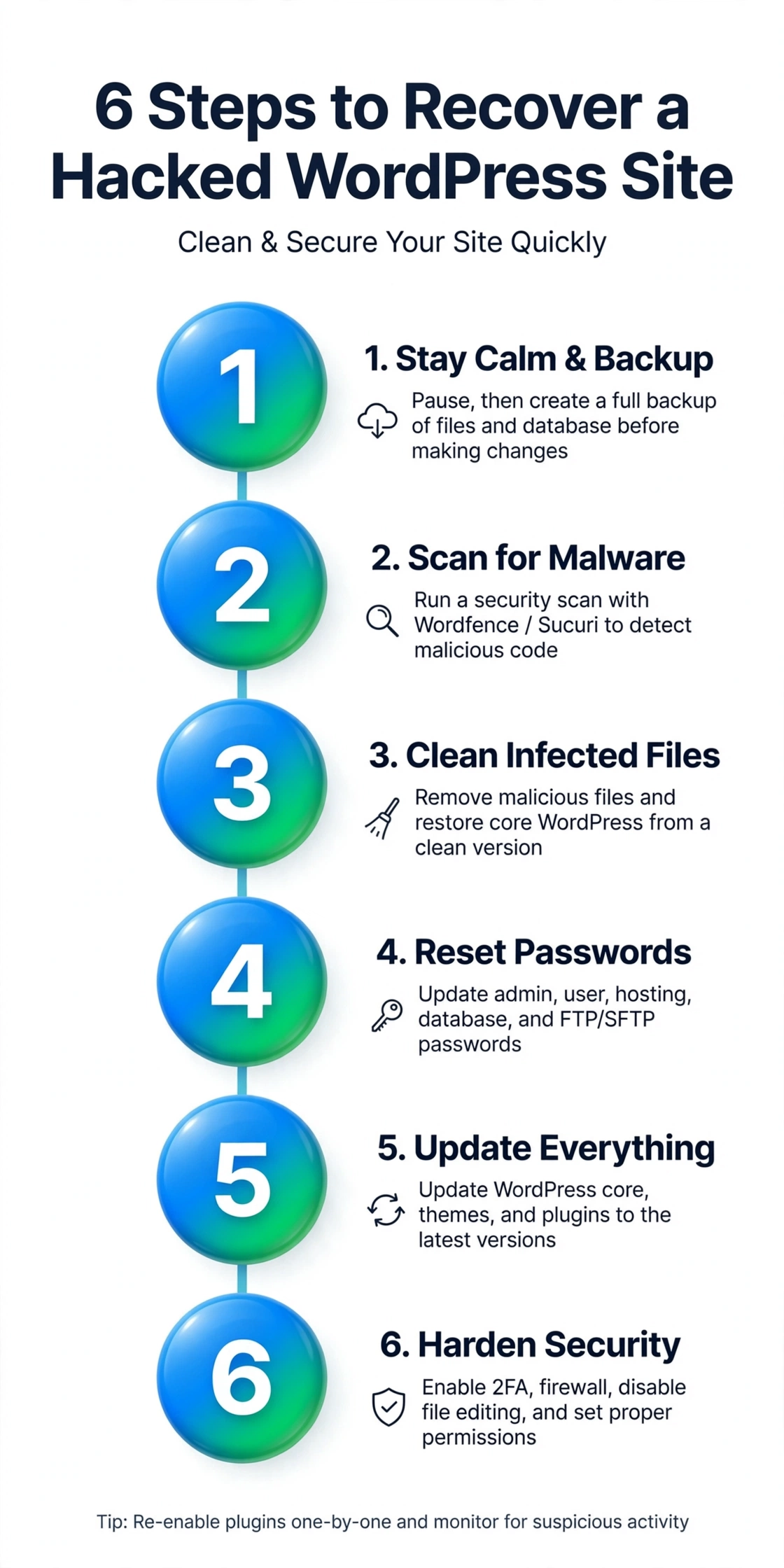
1. Don’t touch anything yet: take stock and back up what you can
Before you fix anything, figure out what you’re dealing with. Don’t delete files, don’t deactivate plugins at random, and don’t start reinstalling yet. Random changes destroy evidence of how the attacker got in.
Write down the symptoms: visitor redirects, mystery admin users, a Google warning, strange pages in search results. Check with your hosting provider too, since some hosts suspend hacked accounts or send warnings you’d otherwise miss.
Now back up everything, including the infected site. That sounds wrong, but you want a copy of the crime scene in case the cleanup goes sideways. Download the full site via FTP or your host’s file manager, and export the database through phpMyAdmin. Label the folder clearly, something like site-backup-INFECTED-2026-10-06, so you never confuse it with a clean backup.
Next, put the site into maintenance mode so visitors stop landing on the hacked version. Many hosts offer a one-click maintenance page, which is the safest option right now. Keep the official WordPress hacked-site FAQ open as a reference.
2. Scan to find the infection
You can’t clean what you can’t find. Install Wordfence (free is fine) and run a full scan. It compares your files against clean copies from wordpress.org and flags anything modified or added.
Get a second opinion from outside your server with Sucuri’s free SiteCheck. It looks at your site the way Google and your visitors see it, and checks whether your domain has landed on any blocklists.
Then do some manual checking, because scanners don’t catch everything. In your file manager or FTP client, sort wp-content/uploads by modification date. That folder should hold media files, not PHP. Any .php file sitting in uploads is suspicious until proven otherwise. Check your .htaccess file for redirect rules you didn’t add, and open wp-config.php to look for strange code at the very top or bottom. In wp-admin, go to Users and look for administrator accounts you didn’t create, then check Settings, General to make sure your site URL and admin email haven’t been changed.
3. Clean the infected files
My rule on every cleanup: replace, don’t surgically edit. Download a fresh copy of WordPress and overwrite wp-admin, wp-includes, and the files in your site root, except wp-config.php and .htaccess, which you should inspect line by line. Then reinstall every plugin and theme from a clean source. Delete each plugin folder entirely and install fresh, since updates don’t always remove planted backdoor files.
Delete anything that shouldn’t exist: random PHP files in uploads, folders with gibberish names, files with recent timestamps you can’t explain. Then check the database. Search wp_posts for spammy links, and look through wp_options for entries you don’t recognize. This is where DIY gets risky, because one wrong delete can break the site. That’s what your infected backup from step 1 is for. Sucuri’s cleanup guide walks through this in more detail if you want a second reference.
One hard truth: if you ran nulled or pirated premium plugins or themes, that’s likely how they got in. Those files often ship with backdoors inside. Delete them and buy legitimate licenses or switch to free alternatives from wordpress.org.
4. Reset every password and key
Cleaning files means nothing if the attacker still has the keys. Reset every password connected to the site, from a computer you trust is clean: every WordPress administrator account, your hosting control panel password, and your FTP or SFTP credentials. Better yet, delete old FTP accounts entirely and create fresh ones.
Change your database password in your hosting panel, then update it in wp-config.php to match. While you’re there, replace all the WordPress salts and security keys with fresh ones from api.wordpress.org/secret-key/1.1/salt/. This logs out every session on the site, including the attacker’s.
Don’t forget API keys for payment gateways, email services, or other third-party tools. Rotate them too. If customer data may have been exposed, you might have notification obligations, which is beyond DIY and one of the situations where professional help earns its fee.
5. Update everything
Most WordPress hacks get in through outdated software, so this step closes the hole. Update WordPress core, every plugin, and every theme. Then delete everything you’re not actively using. Inactive code is still reachable code, and attackers scan disabled plugins for known vulnerabilities just as happily as active ones.
Check your PHP version in your hosting panel while you’re there. If you’re still on PHP 7.x or older, ask your host to move you to PHP 8.x. Old PHP has known security holes no plugin can protect you from. Finally, turn on automatic updates for minor core releases and trusted plugins. The update you skip is the one the bots are counting on.
6. Harden so it doesn’t happen again
Cleaning a hack twice is nobody’s idea of fun, so lock things down. Keep a security plugin installed and active. Wordfence’s free version covers the essentials for most small sites: firewall, malware scanning, and login attempt limiting. Turn on two-factor authentication for every administrator account. It’s the single cheapest security upgrade you can make.
Add this line to wp-config.php, above the “stop editing” comment:
define(‘DISALLOW_FILE_EDIT’, true);
That removes the theme and plugin editors from wp-admin entirely, so a stolen admin login can’t be used to plant code through the built-in editor. Also make sure nobody uses “admin” as a username, and give each user the lowest role that lets them do their job.
Set up real backups: automated, stored somewhere other than your own server, and tested by actually restoring one. A backup you’ve never tested is a hope, not a plan. If you’d rather not think about any of this again, that’s exactly what a WordPress maintenance plan covers, and my maintenance checklist is a good DIY starting point.
When to nuke and restore from backup instead
Sometimes cleaning isn’t the smart move. If you have a clean backup from before the hack, restoring it is faster and more certain than hunting every backdoor. The key question is when the infection started, so pick a backup older than that. Then immediately do steps 4, 5, and 6. Restore without those and you’ll be reinfected within days through the same hole.
Bring in professional help when the hack keeps coming back after cleaning, when the server itself is compromised, when customer or payment data may have been exposed, or when Google has flagged the site and you want the review handled properly. My honest rule for clients: a “cleaned” site you’re not sure about is worse than a restored one. If you have doubt, restore. And if you’d rather hand it off, I clean up hacked WordPress sites for clients. Sometimes the fastest fix is letting someone who’s done it a dozen times take over.
Frequently Asked Questions (FAQ)
How do I know if my WordPress site is hacked?
The common signs: visitors redirected to spam sites, mystery administrator accounts, a “This site may be hacked” warning in Google, an overnight traffic collapse, or spam pages under site:yourdomain.com. Your host may also suspend the account. If two or more of these are true, treat it as a hack and start with step 1.
Can I just restore a backup and skip the cleanup?
Yes, if the backup predates the infection. But restoring alone isn’t enough. You still have to reset all passwords, update everything, and harden the site afterward, or the attacker walks back in through the same hole.
How long does it take to clean a hacked WordPress site?
A straightforward infection takes a few focused hours. A deep one with database spam and blacklisting can take a day or more. If the hack comes back after cleaning, something was missed, usually an outdated plugin or a backdoor file in the uploads folder.
Will Google remove the “This site may be hacked” warning?
Yes. Once the site is genuinely clean, request a review in Google Search Console under Security Issues. Google usually lifts the warning within a day or two. Don’t request it until the cleanup is truly complete, because a failed review restarts the clock.
A hacked site feels personal, but it’s rarely about you. Bots probe thousands of WordPress sites daily looking for known holes, and yours simply answered. Work the steps in order, don’t skip the password resets, and harden the site so you never do this twice.