

It usually starts with something small. A client opens Elementor to change one line of text on their homepage, and instead of the editor they get the spinning loader. Or the grey widget panel that never fills in. Ten minutes later I get the message everyone sends: “I think I broke the website.”
You probably didn’t break anything. The Elementor editor not loading is one of the most common Elementor emergencies I deal with, and the cause is almost never your content. It’s a script that failed to load, a cache serving old files, a memory limit that’s too low, or a plugin quietly fighting with the editor. The fixes below are the exact sequence I run through on client sites, in the order I try them.
First, work out what is actually broken
Before you change a single setting, spend two minutes narrowing the problem down. It saves a lot of random clicking later.
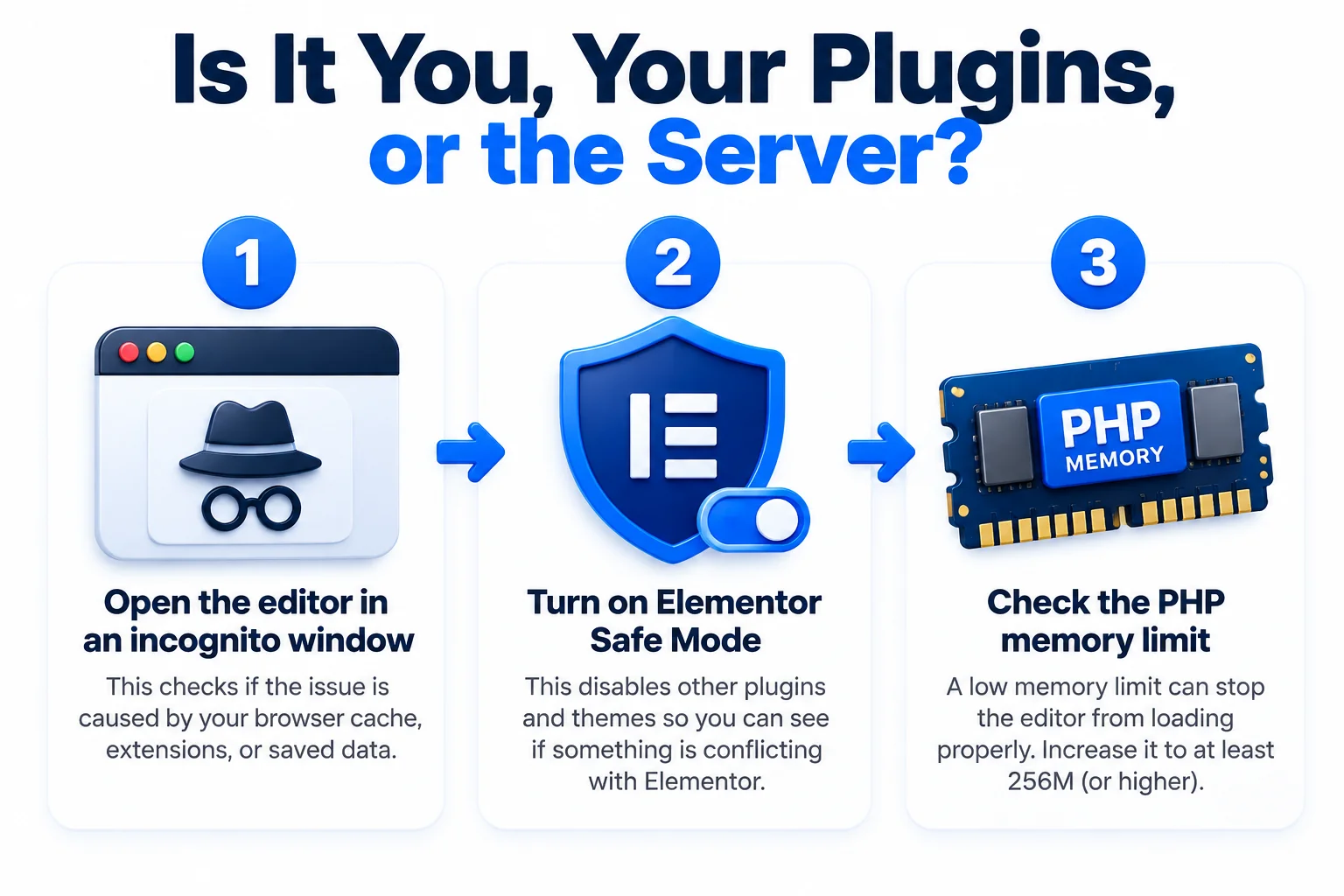
Test one: open the editor in an incognito window. Log in to WordPress in a private browsing window and try editing the same page. If Elementor loads fine there, your problem is your browser: cached files or an extension, often an ad blocker, interfering with the editor. You’ve just saved yourself an hour.
Test two: check whether it fails everywhere or on one page. Try editing a simple page, then the heavy one. If only one page fails, that page is usually overloaded with widgets, giant images or a broken third party embed. If every page fails, the problem is site wide: memory, a plugin conflict or a server setting.
Test three: look at the front end. In most cases your live site looks completely normal. That’s because this is an editor loading problem, not corrupted content. Your pages are stored safely in the database. Knowing that takes the panic out of the next steps.
One more thing worth doing before you start: think about what changed recently. Did Elementor update yesterday? Did you install a new plugin, switch on a CDN setting, or move hosting last week? Editor failures almost always follow a change, and knowing which one points you straight at the right fix instead of working through all nine.
The 9 fixes, in the order I try them
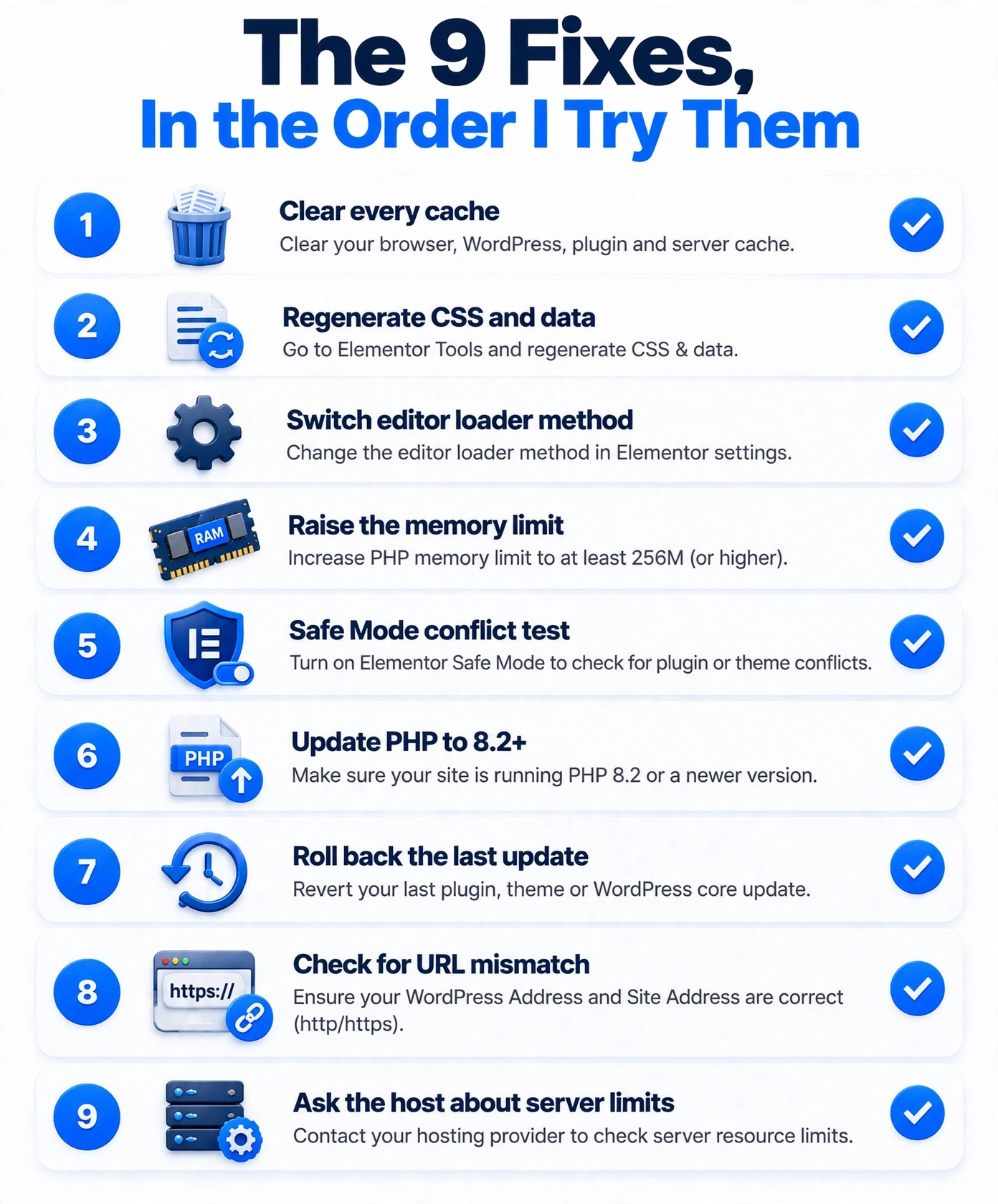
Work through these in order. Most sites are fixed by number three or four, and each step either fixes the problem or tells you something useful about what’s causing it. If your site also feels sluggish for visitors once the editor is back, that’s a separate job: speed up an Elementor site covers that side of things properly.
1. Clear every cache, all of them
Stale cached files are the number one cause I see. Clear them in this order: hard refresh your browser (Ctrl + Shift + R), purge your caching plugin, then purge your CDN if you use one. On a LiteSpeed server, my LiteSpeed Cache settings for Elementor walkthrough shows where the purge buttons live and which settings matter.
One special culprit: Cloudflare’s Rocket Loader. It rewrites how JavaScript loads, and it breaks the Elementor editor regularly. If you’re on Cloudflare, turn Rocket Loader off temporarily and try the editor again. You’d be surprised how often that’s the whole problem.
2. Regenerate CSS and data
Elementor generates its own CSS files for your pages, and those files get corrupted or fall out of sync more often than you’d think, especially after an update or a migration. Go to Elementor > Tools and click Regenerate CSS & Data. Wait for it to finish, then reload the editor. This takes thirty seconds and fixes a stubborn share of loading issues, so never skip it.
3. Switch the editor loader method
Elementor has a built in workaround for servers that struggle with how it loads the editor. Go to Elementor > Settings > Advanced, find Switch Editor Loader Method and set it to Enable. Save, then try editing again. On shared hosting with strict security rules, this one change regularly brings a dead editor back to life.
While you’re on that settings screen, it’s also worth toggling the editor off and on in your browser once more with a hard refresh. The loader change only takes effect on a fresh load, and I regularly see people declare it broken because they tested it in the same tired browser tab that failed originally.
4. Raise the PHP memory limit
Elementor is hungry. The official minimum is 256MB of PHP memory, and in practice I treat 512MB as the comfortable number, especially with Elementor Pro and add-ons installed. Check your current limit under Tools > Site Health > Info > Server.
To raise it, open wp-config.php in your hosting file manager and add this line just above the “That’s all, stop editing!” comment:
define(‘WP_MEMORY_LIMIT’, ‘512M’);
Save the file and reload the editor. If your host caps memory below what you set, you’ll see the real number stay unchanged in Site Health, and that’s a conversation to have with them.
5. Hunt the plugin conflict properly, with Safe Mode
Guessing which plugin is guilty wastes hours. Do it the clean way. Go to Elementor > Tools and enable Safe Mode. It loads the editor with every other plugin and your theme temporarily out of the picture, for your admin session only.
If the editor loads in Safe Mode, you’ve confirmed a conflict. Turn Safe Mode off, deactivate your plugins except Elementor and Elementor Pro, confirm the editor works, then reactivate them one by one, checking the editor after each. The one that breaks it is your culprit. Add-on packs for Elementor are the usual suspects, and they’re also a big reason why Elementor sites load slowly in the first place, because one bloated page full of third party widgets makes the editor crawl too.
6. Check the PHP version
Old PHP causes strange editor behaviour that looks like a plugin problem. Under Tools > Site Health > Info > Server, check the PHP version. You want 8.2 or newer. If you’re still on 7.4 or an early 8.0, update it in your hosting control panel. Take a backup first, and if the site breaks afterwards, drop back a version and update your oldest plugins, because something on the site isn’t ready yet.
7. Roll back the last Elementor update
If the editor broke the same day Elementor updated, don’t overthink it. Go to Elementor > Tools > Version Control and reinstall the previous version. If you run Elementor Pro, roll it back to the matching version too, because mismatched free and Pro versions cause their own loading errors. Work on the site, and update again once the next patch release lands.
8. Check for a URL mismatch
Go to Settings > General and compare the WordPress Address and Site Address. They must match exactly, character for character, including the https and whether www is there or not. A mismatch often appears after a migration or an SSL change, and it stops the editor from loading its own files correctly. Fix the odd one out, save, and test.
9. Server limits: max_input_vars and ModSecurity
If you’re still stuck, the problem is probably the server. Two usual suspects: max_input_vars, which is often set to 1000 on shared hosting when Elementor wants 5000 or more on complex pages, and ModSecurity, the server firewall that sometimes blocks the editor’s requests because they look suspicious.
This is the point where you message your host, and specifics get you a fast answer. Tell them: the Elementor editor won’t load, you’ve cleared caches and tested in Safe Mode, and you’d like them to check the server error log, raise max_input_vars to 5000, and whitelist any ModSecurity rule being triggered. A good host resolves that ticket in minutes.
When none of this works
Occasionally the problem isn’t your site at all. A specific Elementor release ships with a bug, half the community hits it the same week, and no amount of cache clearing will save you. Before you tear your hosting apart, search the Elementor changelog and support forums for your exact version number. If others are reporting the same loading failure, roll back using fix 7, carry on working, and wait for the patch release. Chasing a host problem that doesn’t exist is the most expensive mistake in this whole list.
And if the forums are quiet and your host swears the server is fine, the last resort is a staging copy. Clone the site, deactivate everything there, and break the copy as much as you like while you hunt the cause. Your live site stays untouched, your visitors notice nothing, and you can experiment without the clock ticking. It’s slower, but on a site that makes money, it’s the professional way to finish a stubborn case like this.
Frequently Asked Questions (FAQ)
Why is my Elementor editor stuck on the loading screen?
Usually because something the editor needs failed to load: stale cached files, a JavaScript conflict from another plugin, a PHP memory limit that’s too low, or a server security rule blocking its requests. Work through the fixes in order, because the early ones rule out the cheap causes before you touch the serious ones.
How much memory does Elementor actually need?
The official minimum is 256MB, and a simple site can run on that. Once you add Elementor Pro, a few add-on packs or WooCommerce, 512MB is the number I set on client sites. If Site Health shows 128MB or less, expect loading problems sooner or later.
Does Safe Mode change anything on my live site?
No. Safe Mode only affects your editing session while you’re logged in as admin. Your visitors keep seeing the normal site with every plugin active. It’s a diagnostic tool, not a change to your site, so use it freely whenever the editor misbehaves.
Will clearing cache break my site?
No. Clearing cache deletes temporary copies of your pages and files, not the pages themselves. Everything gets rebuilt automatically on the next visit. The worst case is your site feels slightly slower for a few minutes while the fresh cache builds up again.
The editor loads but the widget panel is grey, is that the same problem?
Yes, it’s the same family. A grey or empty widget panel means the editor frame loaded but its scripts didn’t finish, which points back to the same causes: memory limits, Rocket Loader, or a plugin conflict. Start with fixes 1, 4 and 5, in that order, because they cover nearly every grey panel case I see.