

Why Elementor Sites Load Slowly usually comes down to a mix of design weight, server quality, and missed performance settings inside Elementor itself. The builder gives small developers a lot of creative freedom through its Drag-and-Drop Editor, motion effects, masks, and pixel-perfect controls, but that freedom can create heavier pages if you do not manage it carefully. The good news is that Elementor also includes built-in tools to reduce that weight, and a structured cleanup process can improve load times without rebuilding the site from scratch.
For small web developers, the goal is not to make every page minimal. It is to decide which visual choices actually help the site and which ones only add extra requests, larger files, and more browser work. That is the practical reason performance tuning matters on Elementor sites.
Common Causes of Slow Loading in Elementor Sites
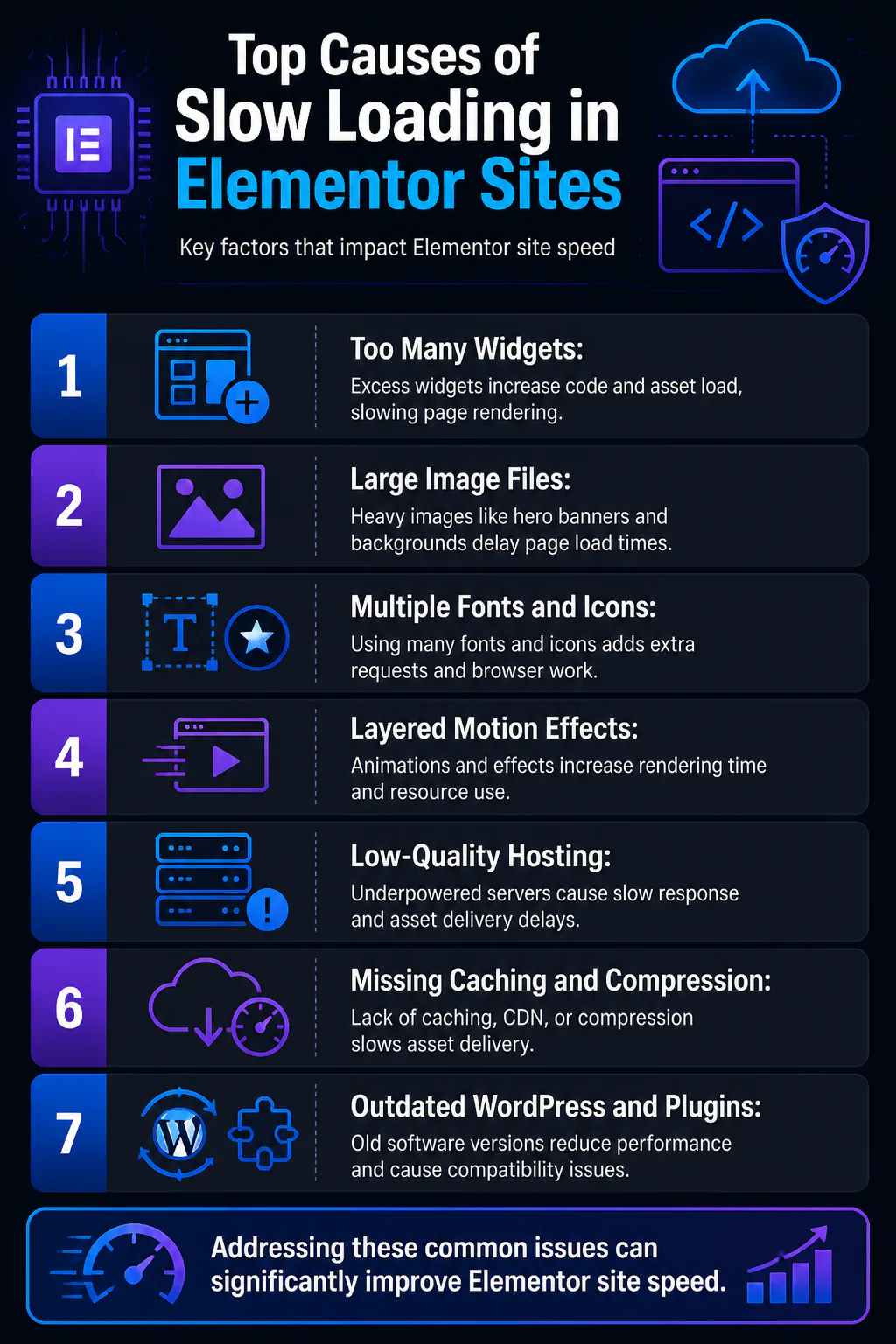
Elementor is used on more than 22 million websites, and its popularity comes from how much control it gives you. That same flexibility is also why some Elementor builds load slowly. A page with too many widgets, large image files, multiple fonts, heavy icons, and layered motion effects asks the browser to process more code and more assets before the page feels complete.
Enable Optimized DOM Output
Start in Elementor Performance settings and toggle on Optimized DOM Output. This setting helps reduce unnecessary page structure, which means the browser has less HTML to parse and render. In simple terms, a cleaner page structure often leads to faster visual loading and smoother interaction.
Load Icons Inline
Next, go to Performance settings and enable Load Icons Inline. Icons often look small, but the way they are loaded can still affect page speed. Inline loading helps reduce extra file overhead, which is useful on Elementor pages that use icon-heavy sections, feature blocks, or navigation elements.
Activate Lazy Load for Images
In Performance settings, enable Lazy Load Images. This tells the page to load below-the-fold images later instead of forcing everything to load at once. On long Elementor pages with many sections, galleries, or background visuals, this can make the first screen appear much faster.
Disable Unused Widgets
Return to Performance settings and disable widgets not used on the site. Many slow Elementor sites are not failing because of one big issue but because of accumulated extras. If your build only uses a smaller set of design elements, there is no reason to carry the weight of widgets that never appear on live pages.
Compress and Convert Images
During the media upload process, compress images before upload and use WebP where possible. Elementor supports automatic, high-fidelity image compression, and this is one of the easiest wins for small developers. Hero banners, section backgrounds, and team photos are frequent offenders because they look fine in the editor but are far too large for live delivery.
Set Up Caching and CDN
Use your Hosting setup or a WordPress caching layer to enable page and browser caching, activate GZIP or Brotli compression, and integrate a global CDN. Elementor pages often include more assets than simpler builds, so fast delivery matters. If you are troubleshooting a broader WordPress site slow pattern, Elementor usually amplifies whatever server and delivery weaknesses already exist.
Update WordPress and Plugins
Open WordPress Dashboard > Updates, then update WordPress core, Elementor, Elementor Pro, and active plugins and themes. Old software creates performance drag and compatibility issues that can make front-end assets load less efficiently. Keeping the stack current is one of the simplest ways to maintain stable speed over time.
In practice, the most common Elementor slowdowns come from a small group of repeat issues:
- Low-quality hosting or underpowered server resources
- Too many active plugins alongside Elementor
- Heavy images and media sections
- Too many fonts, icons, and motion effects
- Missing caching, compression, or CDN delivery
- Outdated WordPress, Elementor, themes, or plugins
How Elementor’s Architecture Affects Performance
Elementor’s architecture is built around flexible visual design, and that means each page can include a deeper structure of sections, containers, widgets, icons, and media assets. The Drag-and-Drop Editor makes it easy to add these elements quickly, but every design choice adds rendering work. That is especially true when pages stack motion effects, custom layouts, and multiple visual layers.
Why visual freedom adds weight
Features like Global Styles, CSS Transforms, Masks, and Motion Effects are useful, but they should be applied selectively. If every section animates, every heading uses a separate font treatment, and every block carries decorative icons, the browser spends longer painting the page. That can hurt user experience before visitors even start scrolling.
Why page structure matters
Elementor has built-in support for Optimized DOM Output, Adaptive Loading, and Responsive Assets because page structure directly affects speed. Adaptive Loading and Responsive Assets help the site deliver resources more efficiently across devices. If your reports show poor loading behavior on key pages, it is smart to pair Elementor tuning with work to improve Core Web Vitals rather than only shrinking images.
Best Practices for Optimizing Elementor Site Speed
-
Trim the design first
Audit each template and remove decorative elements that do not help the page goal. Limit motion effects, reduce font variations, and keep icon use intentional. System fonts are often the better choice when performance matters more than visual novelty.
-
Use Performance Settings fully
Do not stop at one toggle. Turn on Optimized DOM Output, Load Icons Inline, and Lazy Load Images, then review unused widgets. Elementor includes these controls for a reason, and together they produce a more noticeable result than any single setting alone.
-
Standardize your image workflow
Compress every image before or during upload and prefer WebP when possible. Large background images are one of the biggest Elementor-specific mistakes because they are often repeated across homepage sections, callouts, and landing pages.
-
Reduce plugin overlap
If Elementor already handles a function natively, avoid adding extra plugin layers for similar front-end behavior. Small developer stacks often get slower over time because each new client request adds another plugin instead of simplifying the existing setup.
-
Keep the stack updated
Update WordPress core, Elementor, Elementor Pro, active plugins, and themes on a regular schedule. Performance and security maintenance belong together, and the same discipline also supports a cleaner WordPress technical SEO foundation.
Quick optimization priorities
- Reduce animations before changing the layout system
- Cut font families before fine-tuning icon usage
- Fix hero images before optimizing small thumbnails
- Enable caching and compression before blaming Elementor alone
Prefer a lighter alternative?
If you are planning a new website, or you are open to rebuilding an existing one, it is worth considering Kadence. It works a little differently to Elementor. Rather than a free-form drag-and-drop canvas, it is a lightweight theme paired with Kadence Blocks, which adds visual, easy-to-use building blocks to the native WordPress editor. Most people find it just as straightforward to work with, and it is built far lighter than most page builders, so you spend less time fighting performance problems later on.
As part of a build I provide the premium Kadence Theme and Kadence Blocks Pro, and I design and develop the site in Kadence for you, so you get the lighter foundation without buying the licences separately.
Server Requirements
Hosting quality has a direct effect on Elementor performance because the builder’s pages often deliver more assets than a minimal WordPress setup. Elementor recommends managed WordPress hosting with PHP 8.1 or newer and SSD or NVMe storage. If the server is slow, even well-optimized pages will feel heavy.
What better hosting improves
Stronger hosting reduces server response delays, delivers assets faster, and handles traffic spikes more smoothly. That matters most on image-rich landing pages, long service pages, and sites with many templates built in Elementor. A fast server does not replace front-end optimization, but it removes a major bottleneck.
What to enable on the server
Your setup should include page caching, browser caching, GZIP or Brotli compression, and a global CDN. These are not optional extras for Elementor-heavy sites. They are part of the baseline needed to support faster delivery across regions and devices.
| Factor | Slow Setup | Better Setup |
|---|---|---|
| Server environment | Older PHP and limited resources | PHP 8.1 or newer on managed WordPress hosting |
| Storage | Slower disk performance | SSD or NVMe storage |
| Delivery | No CDN or compression | CDN plus GZIP or Brotli |
| Caching | Little or no cache coverage | Page and browser caching enabled |
Tools to Diagnose and Monitor Elementor Site Speed
-
Run Google PageSpeed Insights
Use it to check real performance signals and review Core Web Vitals. Focus on LCP, which measures how quickly the main visible content appears, INP, which reflects responsiveness after interaction, and CLS, which shows layout shifting.
-
Check Google Search Console
Open the Core Web Vitals report to monitor sitewide trends over time. This is useful for small developers managing several Elementor templates because it shows whether changes are helping across the whole site, not just on one test page.
-
Use GTmetrix for page detail
GTmetrix helps you inspect how assets load on individual Elementor pages. It is especially useful when one homepage section, background image, or script set is dragging down the rest of the build.
-
Test with WebPageTest
WebPageTest is helpful for deeper diagnostics, especially when you want a clearer view of loading sequence and delivery behavior. If an Elementor page feels slow before it becomes fully interactive, this tool can help isolate the hold-up.
What to look for first
- LCP problems often point to large hero images or slow server delivery
- INP issues often reflect too much front-end work on interactive pages
- CLS problems often come from unstable image, font, or section loading
Conclusion
Elementor sites load slowly when visual flexibility turns into asset bloat, weak hosting, and missed performance settings. Small web developers can fix most of that by using Elementor Performance settings properly, reducing media and motion weight, and backing the build with solid hosting, caching, and regular monitoring.
Frequently Asked Questions (FAQ)
Does Elementor slow down your website?
Elementor adds more HTML, CSS and JavaScript per section than a hand-coded page, so it carries real overhead. It is not inherently slow though. Most slow Elementor sites are the result of oversized images, deeply nested containers, unused widget assets, excessive motion effects and weak hosting rather than the builder itself.
Is Elementor bad for SEO?
No. Elementor produces server-rendered HTML that Google crawls without difficulty, and plenty of well-ranking sites run on it. The indirect risk is performance, since heavier pages can weaken Core Web Vitals. Configure the builder properly and it is not a ranking disadvantage.
Which Elementor settings should I enable first?
Start with Optimized DOM Output, Load Icons Inline, and Lazy Load Images in Performance settings. Then disable unused widgets and review image sizes across key pages.
Do images matter more than animations?
Both matter, but oversized images are often the fastest fix because they heavily affect first load. Animations, fonts, and icons then become the next layer to trim.
Should I switch from Elementor to Kadence for speed?
Only if you are rebuilding anyway. Kadence is a lightweight theme paired with Kadence Blocks, which extends the native WordPress block editor rather than being a drag and drop builder like Elementor. It does produce noticeably lighter markup, but moving an existing site means rebuilding every page in the block editor, and you will usually recover more speed faster by optimising images, enabling Elementor’s asset loading experiments and improving hosting. Switching platforms is rarely the cheapest fix.
Why is my Elementor editor slow but the live site fast?
The editor and the front end are different environments. A slow editor usually points to a plugin conflict, low PHP memory, or too many browser tabs, not to your visitors’ experience. Elementor’s Safe Mode loads the editor without plugins or your theme, which isolates the cause quickly.
Which caching plugin works best with Elementor?
WP Rocket, FlyingPress and LiteSpeed Cache all pair well with Elementor, with LiteSpeed the natural pick if your host runs a LiteSpeed server. Whichever you choose, run only one caching plugin, and take care with aggressive minification because it is a common cause of broken Elementor JavaScript.
Do Elementor add-on plugins slow sites down?
They frequently do, because many add-on packs load their CSS and JavaScript site-wide even on pages where none of their widgets appear. If you installed a large add-on bundle to use two or three widgets, that is often the single heaviest thing on the site.
How often should I test Elementor site speed?
Test after major design changes, plugin updates, or template edits. For active sites, monthly checks in PageSpeed Insights and Search Console help catch regressions early.