

The worst part of this bug is that nothing looks broken. Your visitor fills in the form, clicks send, and sees a friendly thank-you message. They walk away thinking you’ll reply within a day. You, on the other hand, hear nothing at all. No email, no notification, no sign that anyone ever wrote to you.
A client of mine only found out because a customer phoned him and asked, a little annoyed, why nobody had replied to her message. She’d written through his contact form two weeks earlier. When we dug in, she wasn’t the only one. There were more enquiries sitting there, real leads from real people, and every single one had vanished without a trace.
If your Elementor form is not sending email, don’t panic and don’t start rebuilding the form. In my experience the form itself is rarely the real problem. Work through the checks below in order, and you’ll find the fault. Most of the time it comes down to how WordPress sends email, and there’s a proper fix for that at the end.
First, check the form itself
Before you blame your hosting or your inbox, prove the form is actually trying to send an email. Open the page in the Elementor editor, click on the form widget, and look at the settings on the left.
Start with Actions After Submit. This is the list of things Elementor does after someone submits the form, and Email has to be on that list. I’ve seen forms where it was removed during editing, or never added in the first place. If Email isn’t there, the form will happily show a success message and send absolutely nothing. Add it back and save.
Next, open the Email section and look at the To field. By default it contains a shortcode that pulls in your WordPress admin email address. That sounds sensible until you check what that address actually is. Go to Settings, then General, in your WordPress dashboard and read the administration email. On a lot of sites I audit, it’s an old Gmail address from whoever set the site up years ago, or a mailbox nobody checks anymore. Your form emails might be sending perfectly, just to an inbox that hasn’t been opened since 2022. Either update the admin email or type the correct address straight into the To field.
The confirmation email nobody checks
Many forms also send a second email, the confirmation copy to the visitor, using the Email 2 action. This one depends on a shortcode that grabs the address the visitor typed into the email field, and it only works if the field ID matches exactly.
Click on your email field and note its ID, then check the To field in Email 2 uses the shortcode with that exact ID. If the field ID is “email” but the shortcode says something else, the confirmation goes nowhere. It won’t throw an error. It just silently fails, which is the theme of this whole problem.
Prove the form works with a test submission
Now submit the form yourself with details you’ll recognise. Then go to Elementor, then Submissions, in your dashboard (this is an Elementor Pro feature). If your test appears in that list, the form itself is doing its job: it’s accepting entries and storing them.
That tells you something important. The break is happening after submission, somewhere between WordPress and your inbox. Keep that in mind and move on to the next checks.
Then check the boring stuff
I know, checking your spam folder sounds too basic to mention. Check it anyway. Form notification emails are exactly the kind of message spam filters love to catch: automated, short, and sent from a website. Look in Spam, and if you use Gmail, look in the Promotions tab too.
Search your inbox properly while you’re there. Search for your website name, for “Elementor”, and for the subject line your form uses. I’ve had clients swear blind no email arrived, only for a proper search to turn up a neat pile of them filed away by an inbox rule they set up and forgot about.
Then send a test submission and watch a completely different mailbox. If a colleague, a partner, or a second address of your own on another provider receives it fine, your form and your server are working, and the problem is your main inbox or its filters.
It’s also worth saying: if your problem is the opposite one, too many emails and all of them junk, that’s a different fix entirely. That one is about how to stop Elementor form spam, and it deserves its own afternoon. This post is about the silence, not the noise.
If nothing has turned up anywhere, it’s time to look at why WordPress email fails so often, because that’s very likely what’s happening to you.
Why WordPress email fails in the first place
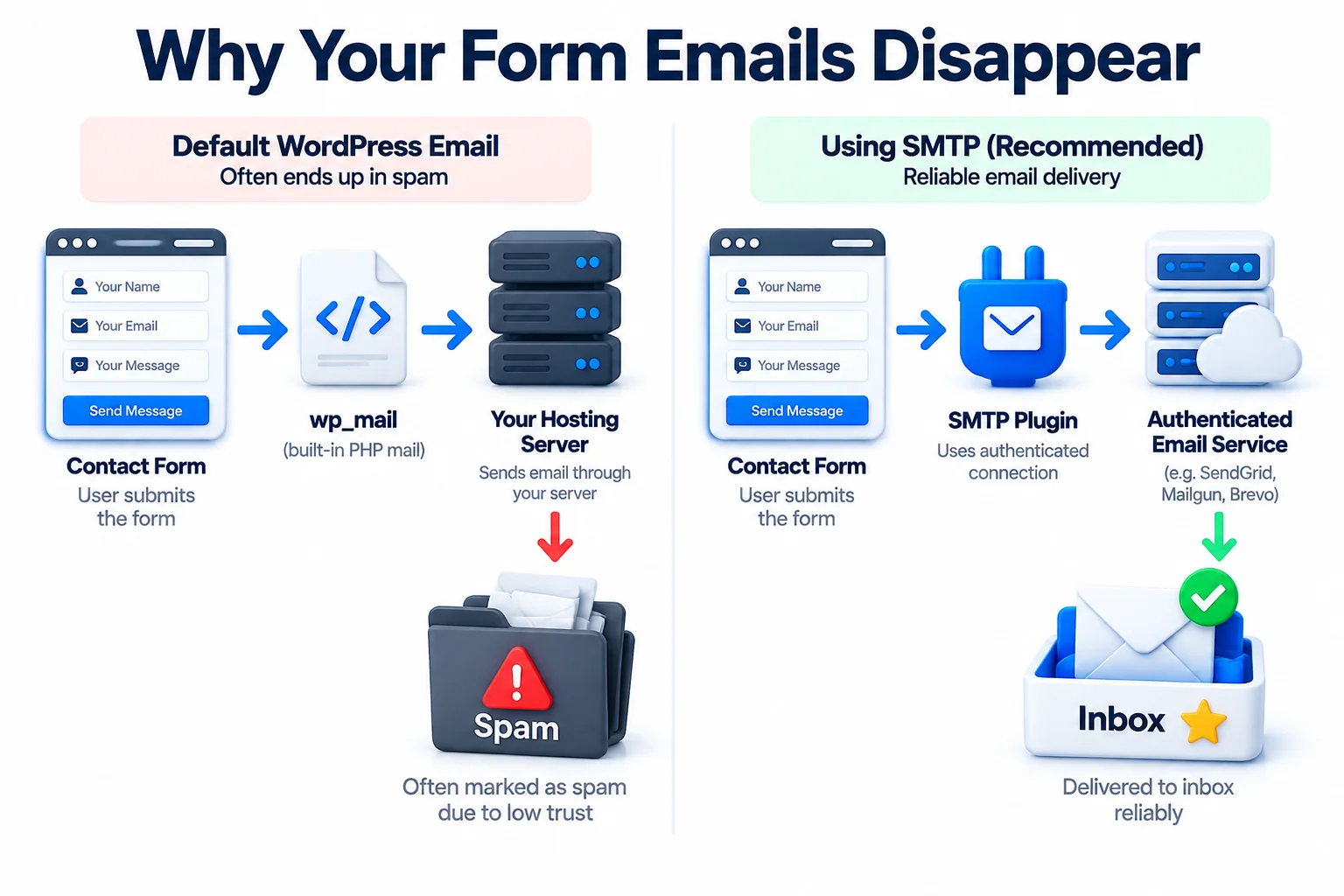
Here’s what most site owners never get told. Elementor doesn’t send email itself. When someone submits your form, Elementor hands the message to a WordPress function called wp_mail, and wp_mail uses PHP mail, which means the message is sent directly from your web server.
That worked well enough fifteen years ago. It doesn’t now. Big inbox providers like Gmail and Outlook have become strict, for good reason, and an email arriving out of nowhere from a random web server looks suspicious to them. Shared hosting servers are the worst offenders. The server might be sending mail for hundreds of websites, some of them sloppy, and its reputation suffers for it. Your perfectly innocent form notification gets treated as guilty by association, and it’s quietly dropped or dumped in spam at a level you’ll never see.
This is also where SPF and DKIM come in. These are DNS records for your domain. SPF lists the servers allowed to send email on behalf of your domain, and DKIM lets the receiving server verify the message genuinely came from an approved source and wasn’t tampered with. If those records are missing, or they don’t include your web server, inbox providers have no proof your site is allowed to send as your domain. So they play it safe and bin the message.
None of this is Elementor’s fault, and reinstalling the plugin won’t change it. The sending method is the problem, so the sending method is what we fix.
The real fix: send through SMTP
SMTP is the proper system the email world actually runs on. Instead of your web server shouting a message into the void, your site logs in to a real mail service with real credentials and sends through it, authenticated and accountable. Inbox providers trust that, so the messages land where they should.
Setting it up takes about twenty minutes. Here’s the order I do it on client sites:
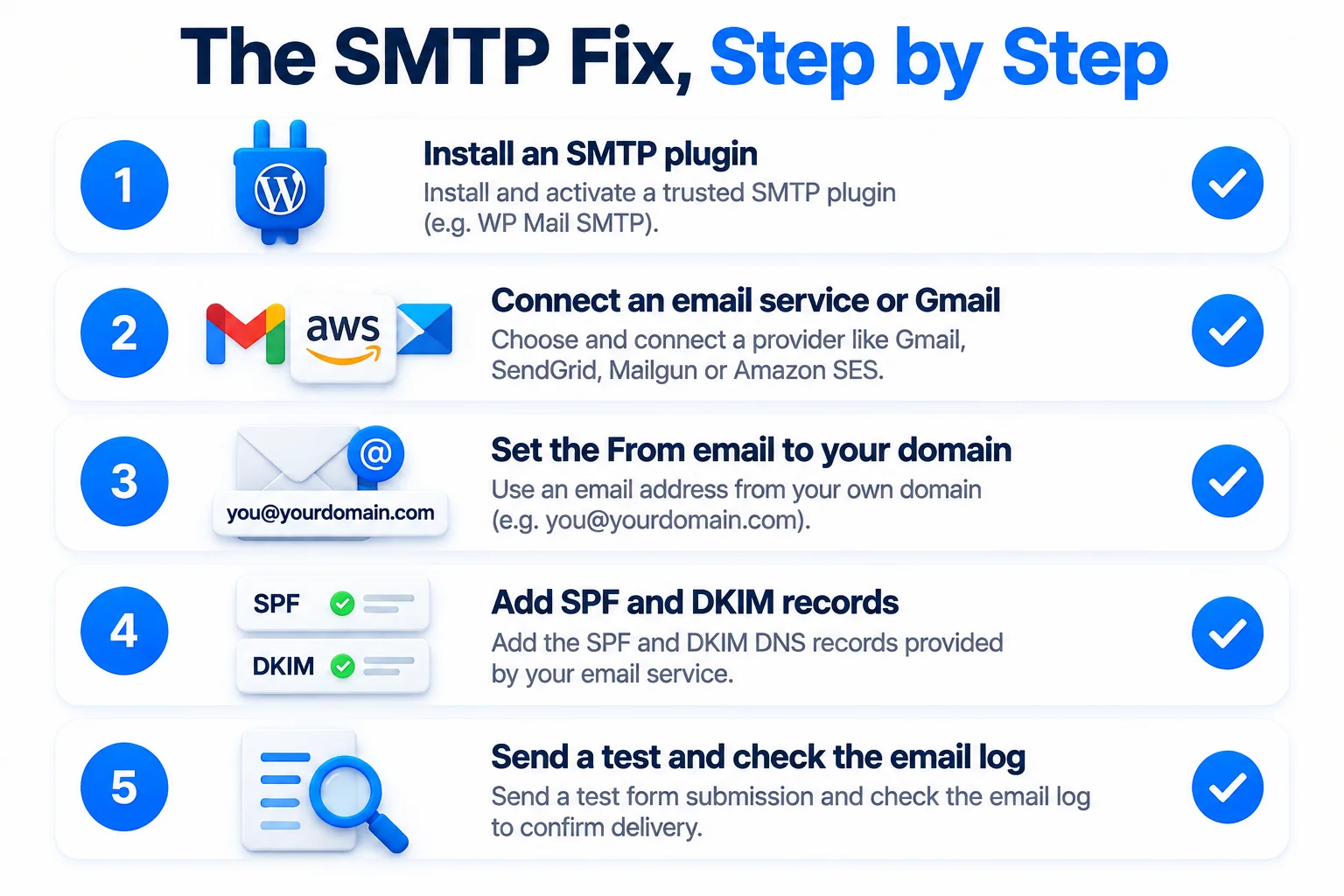
- Install an SMTP plugin. WP Mail SMTP and Post SMTP are both solid, and the free versions are enough for most contact forms. Activate it and open its settings.
- Choose your mailer. You have three sensible options. Your host’s own SMTP server is fine for low volume and usually free. Gmail works through the plugin’s secure sign-in if you already run your mail there. And if your forms bring in serious lead volume, use a transactional service like Brevo, Mailgun or Amazon SES. They’re built for exactly this job and cost very little.
- Set the From email correctly. This matters more than people realise. The From address should be an email address on your own domain, something like contact@ or forms@ your domain. Never set a Gmail address as the From on your own domain’s site. That mismatch is a classic deliverability killer, because your domain’s records can’t vouch for Gmail’s servers and vice versa.
- Add the SPF and DKIM records. Your mailer will give you the exact DNS records to add. You’ll paste them into the DNS settings at your domain registrar or hosting panel. This is the step people skip, and it’s the step that does the heavy lifting for trust. Add every record the mailer gives you, exactly as given.
- Send the test email. Every SMTP plugin has a test tool. Send one to your main inbox, and don’t just check that it arrived. Open it. If it lands in the inbox rather than spam, you’re done. Some plugins also show you the delivery details, which is worth a quick read the first time.
Now submit your Elementor form again as a final test. This time the notification should arrive within a minute or two, in the inbox, where it always should have been.
One honest note: DNS changes can take a little while to spread across the internet. If your first test still lands in spam, wait an hour or two and test again before you start pulling the setup apart.
Make sure it never breaks silently again
The fix above solves the sending problem. This last step solves the silence problem, because any email setup can break in future: a password changes, a DNS record gets edited, a mailer account lapses. You want to find out in a day, not when a customer phones you.
First, turn on the email log in your SMTP plugin. Both plugins I mentioned can record every email your site tries to send, including whether it succeeded or failed and why. If delivery breaks again, that log is the difference between a five-minute diagnosis and a week of guessing.
Second, add a monthly test submission to your routine. Once a month, send yourself a message through every important form on your site and confirm each one arrives. It takes two minutes. It belongs on the same list as your updates, backups and security checks, which is why I include it in my WordPress maintenance checklist for client sites.
Do those two things and this particular bug can’t hurt you twice. You might still get a failed send one day, but you’ll know about it from a log entry or a missing test message, not from lost business.
Frequently Asked Questions (FAQ)
Why does the form say success but no email arrives?
Because the success message only means Elementor accepted the submission. It says nothing about delivery. The email is generated afterwards through wp_mail, and if it gets rejected or filtered on the way to your inbox, nobody gets told. That’s why the failure is silent at both ends.
Is the problem Elementor or my hosting?
Usually neither, exactly. Elementor just hands the message to WordPress, and your hosting sends it with PHP mail, which inbox providers distrust. The weak link is that sending method, not the form plugin or the server hardware. Switching to SMTP replaces the weak link, whichever host you’re on.
Do I need a paid SMTP service?
Probably not. Your host’s SMTP or a free tier from a transactional provider handles a normal contact form’s volume easily. Paid plans make sense when you’re sending a lot of email, like order confirmations from a busy shop, or when you want dedicated sending reputation. Start free, upgrade only if volume forces it.
What should the From email be?
An address on your own domain, like contact@ or forms@ followed by your domain name. It doesn’t need to be a mailbox you read, though it’s tidier if replies can reach one. What it must never be is a free Gmail or Outlook address sending through your domain’s website, because that mismatch fails trust checks.
Can I just check submissions in the dashboard instead?
You can, and you should keep it as a safety net. Elementor Pro stores every submission under Elementor, then Submissions, so leads aren’t truly lost even when email fails. But checking a dashboard every day isn’t a system, it’s a chore you’ll stop doing. Fix the delivery, keep the stored entries as backup, and you’ll never have to think about it again.