

Moving a WordPress site to a new host feels like open-heart surgery. One wrong click and the site goes dark, emails stop working, and your Google rankings fall off a cliff. At least, that’s what it feels like the first time.
I’ve migrated dozens of WordPress sites between hosts over the years. Cheap shared hosting to proper managed hosting. One VPS to another. A couple of panicked midnight moves off hosts that went down and stayed down. Here’s what every one of those moves taught me: a migration is not surgery. It’s a checklist. If you need to migrate a WordPress site to new hosting, follow the steps below in order and your visitors will never notice a thing. That’s what zero downtime really means. Not that the move is instant, but that nobody watching can tell it happened.
Before you touch anything: the pre-migration checklist
You wouldn’t move house without packing first. Same rule here. Before you create a single account or touch a single file, get these sorted:
- A backup you can actually restore. Not “my host says they do backups.” Your own copy, somewhere you control. I use UpdraftPlus on every client site and test the restore before migration day. A backup you’ve never restored is just a hope.
- Your new hosting account, already live. Don’t start the move the day you sign up. Create the account, confirm you can log in, and check the PHP version. Most modern WordPress sites want PHP 8.1 or newer.
- A map of everything attached to your domain. Email is the big one. Note down your MX records, subdomains, CDN setup, and any extra DNS records. Migrations don’t break email. Forgotten DNS records break email.
- Every login you’ll need. Old host, new host, domain registrar, DNS panel. Being locked out mid-migration is miserable. I run this credential audit using my WordPress maintenance checklist as the starting point.
- A quiet window. Pick your lowest-traffic hours, usually late evening. You probably won’t need it, but it’s good insurance.
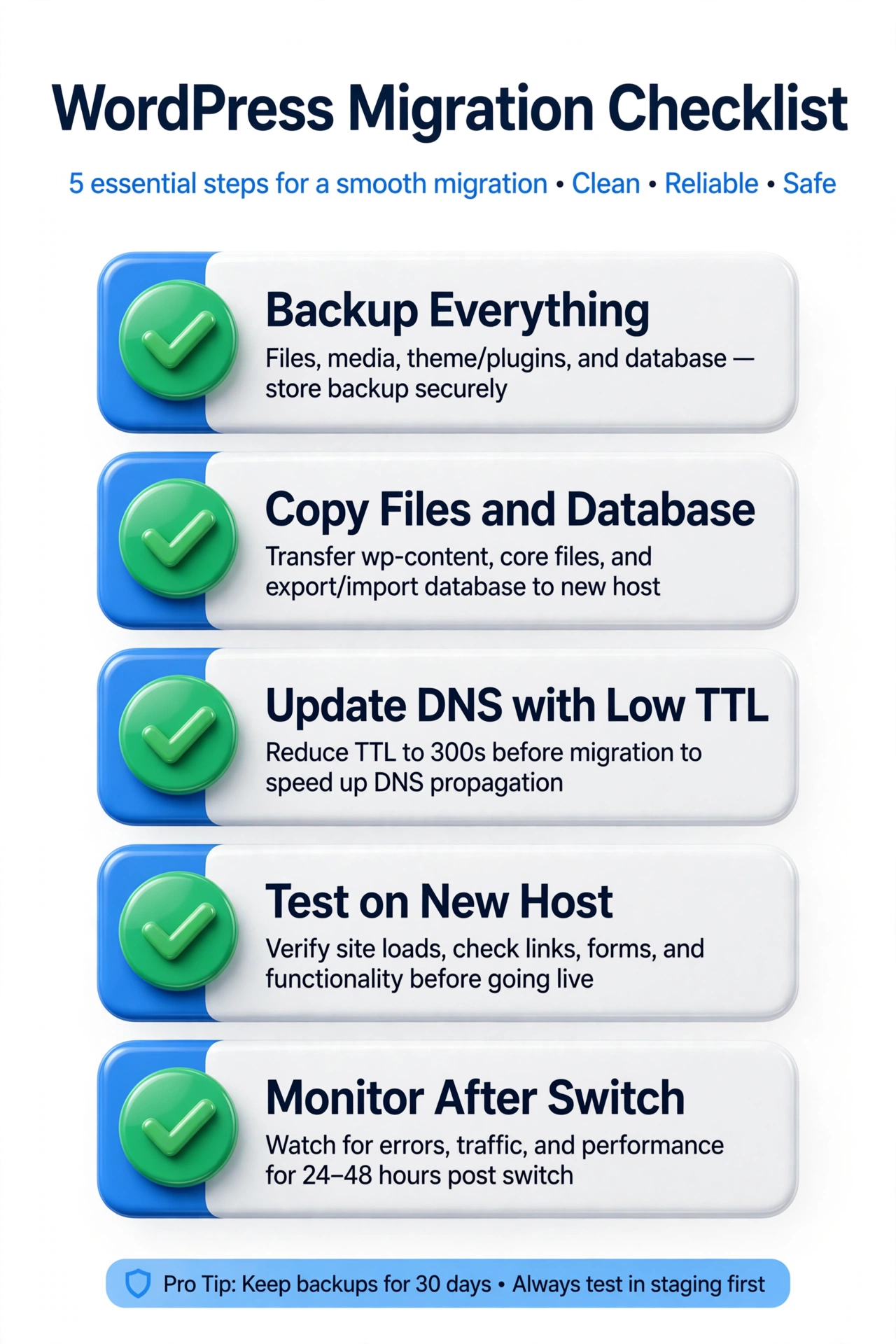
The 5-step migration process
Step 1: Back up everything
Do it again right before you start, even if you backed up yesterday. Databases change constantly: orders, comments, form entries. Your migration backup should be minutes old. Back up the database plus wp-content (themes, plugins, uploads). I exclude cache folders to keep the file size sane.
For large sites or flaky old hosts, the UpdraftPlus Migrator addon is worth it. It packages the whole site and handles URL search-and-replace during import, which removes the most common manual-migration headache.
Step 2: Set up the new host
Create a new empty database and note all four credentials: name, username, password, and host. Set PHP to a supported version and install a free SSL certificate now, before the site goes live. Fixing HTTPS issues on a test copy beats fixing them on a live site.
Skip the one-click WordPress install. You’re about to overwrite it with your migrated copy, so it just creates files you’ll delete.
Step 3: Copy the files and the database
The plugin route (recommended): install a migration plugin on the new host and import your backup package. It copies the files, imports the database, and rewrites URLs. Under an hour for a typical business site.
The manual route: upload wp-content via FTP, import the database SQL through phpMyAdmin, then edit wp-config.php with the new credentials (DB_NAME, DB_USER, DB_PASSWORD, DB_HOST). WordPress maintains official documentation for moving WordPress if you want the full procedure. One warning: never do a blind find-and-replace on the database with a text editor. WordPress stores serialized data and a naive replace corrupts it. Use a serialization-aware search-replace tool.
Step 4: Lower the DNS TTL and switch
This is where the zero downtime magic happens. DNS records have a TTL telling the internet how long to cache them. With a 24-hour TTL, some visitors keep hitting the old server for a full day after you switch.
So 24 to 48 hours before migration day, lower your TTL to 300 seconds (five minutes). Wait for the old TTL to expire, then point your A record at the new host. The whole internet catches up within minutes. After a stable week, raise the TTL back up.
During the switch both copies exist at once. Anyone on stale DNS still sees the old site, which still works. Nobody sees an error page. That’s the trick: never turn the old site off until the new one is proven.
Step 5: Test everything, then monitor
Use the hosts-file trick: add the new server’s IP and your domain to your computer’s hosts file, and your browser loads the new site while everyone else sees the old one. Click through everything. Test forms, test checkout, check for mixed-content warnings over HTTPS.
Then flip the DNS and monitor for a week. Watch uptime, check Search Console for crawl errors, and keep the old account active at least seven days as a rollback. If ongoing monitoring sounds like a chore, that’s what my WordPress website maintenance plans cover.
What can go wrong and how to avoid it
Most migration disasters come from the same short list:
- Email stops working. MX records copied wrong, or lost in a nameserver move. Fix: screenshot every DNS record first, verify mail flow within an hour of the switch.
- Mixed content warnings. Images or scripts still loading over plain http. Fix: search-replace old URL variants during migration, install SSL before going live.
- Broken serialized data. Someone edited the SQL file in a text editor. Fix: only serialization-aware search-replace tools. Ever.
- Slow DNS propagation. You skipped the TTL step. Fix: 300 seconds, set 24 to 48 hours early. No shortcut exists.
- Plugin conflicts on PHP 8. A plugin fine on 7.4 fatals on 8.2. Fix: that’s what step 5’s hosts-file testing is for.
Do you even need to migrate?
Sometimes the host isn’t the problem. A site carrying 60 plugins, unoptimized images, and no caching won’t get fast just because the server got faster. You’ll pay more per month for the same sluggish site. Fix the site first, then judge the host.
But switching hosts IS the fix when time-to-first-byte is slow on a clean test, when downtime happens more than once or twice a year, or when support takes days to answer. A good host won’t make a bad site fast, but a bad host will make a good site slow. If yours is the bottleneck, don’t stay out of fear of the move.
And if you’d rather not touch any of this yourself, that’s fair. Migrations are routine for me but stressful the first time. Get in touch and I’ll handle the whole thing, usually within a day or two.
Frequently Asked Questions (FAQ)
How long does a WordPress migration take?
The hands-on work is two to four hours for a typical business site: backup, copy, database, testing. Calendar time is longer because of DNS: lower the TTL 24 to 48 hours before the switch and do the move in a quiet evening. Big WooCommerce stores with constantly changing databases need more care, sometimes a brief maintenance window for the final sync.
Will migrating hosts hurt my Google rankings?
Not if you do it cleanly. Google doesn’t care which server hosts you. It cares the site stays reachable and fast. Keep URLs identical, avoid downtime during the switch, and make sure the new host is at least as fast. I’ve never seen a ranking drop from a clean migration. What hurts is a botched one: days of downtime, or a staging “discourage search engines” setting left on. Check that setting right after the move.
Can I migrate a WordPress site myself, or should I hire someone?
If you’re comfortable with FTP, phpMyAdmin, and editing wp-config.php, follow the steps above and you’ll be fine. Hire it out when the site earns real money, when WooCommerce data can’t afford to desync, or when the DNS and email setup is complex. A professional migration is cheap insurance next to a broken checkout.
Do I need to keep my old hosting account after migrating?
Yes, at least a week, ideally a full billing cycle. It’s your instant rollback: point DNS back in minutes if something surfaces later. After 30 clean days, cancel it. Just download a final backup before the account closes.
Migrating a WordPress site to new hosting sounds dramatic until you’ve done it once. Then it’s just a checklist: back up, set up, copy, switch DNS with a low TTL, test, monitor. Follow that order and the move is boring, which is exactly what you want. Your visitors keep browsing, Google keeps crawling, and your site gets a faster home.