

It was a Tuesday morning when a client’s panicked message landed in my inbox. Their online store was showing a blank white page where the checkout should have been. The night before, they’d updated WooCommerce on the live site, gone to bed feeling productive, and woken up to a store that couldn’t take a single order. I got everything working again in about three hours. But those were three hours of lost sales, one very stressed business owner, and me digging through backups hoping nothing was permanently broken.
Here’s the thing: that whole mess was avoidable. If we’d run the update on a WordPress staging site first, we’d have spotted the broken checkout in five minutes flat. We could have fixed it calmly, then pushed a working update to the live store. No panic, no lost revenue. In this guide, I’ll explain what a staging site is, show you three ways to set one up, and walk you through the exact workflow I use before touching any client site.
What a WordPress staging site actually is
A staging site is a private, working copy of your website that lives at a separate address, something like staging.yoursite.com. It has the same theme, the same plugins, and a copy of the same database. It looks and behaves exactly like your live site, but it’s invisible to your visitors and to Google.
Think of it as a rehearsal room. You try the scary stuff there first: plugin updates, theme changes, new checkout layouts, speed tweaks. If something breaks, only you see it. You fix it in peace, then copy the working version to your live site. Most good hosts create this copy for you with one click, and it costs nothing extra.
Why you need one: the 3 disasters it prevents
I test every client update on staging first, and it’s not because I’m cautious by nature. It’s because I’ve cleaned up after each of these three disasters, and a staging site would have prevented all of them.
Disaster 1: The update that takes down your store
WordPress core, themes, and plugins don’t always play nicely together. One plugin update can conflict with another and white-screen your site, or break the checkout, the contact form, or the booking calendar. On staging, you click update, check the key pages, and find the conflict before a single visitor notices. On a live site, your customers find it for you, and that’s the worst possible way to do quality testing.
Disaster 2: The redesign the client hates (after it’s already live)
When I redesign a page or change a layout, I build it on staging and send the client a private link. They click around, request changes, and approve the final version. Only then does it go live. Without staging, you’re editing the live site while visitors watch, or you’re describing changes over email and hoping everyone imagines the same thing. Neither of those ends well.
Disaster 3: The speed tweak that breaks everything
This one is sneaky. Caching and minification plugins can make a site dramatically faster, but aggressive settings sometimes break JavaScript: sliders freeze, add-to-cart buttons stop responding, forms won’t submit. I always test performance changes on staging first (here’s my full process for speeding up an Elementor site). If the site still works and it’s faster, the changes go live. If something breaks, no harm done.
3 ways to create a staging site
You don’t need to be technical to get staging. Pick whichever of these three fits your hosting setup.
Option 1: Your host’s one-click staging (easiest)
If your site runs on SiteGround, Hostinger, or Cloudways, you already have staging. It’s literally a button in your hosting panel: click it, wait a few minutes, and you get a working copy of your site on a staging URL. When you’re done testing, another button pushes your changes live. SiteGround has a solid walkthrough of their staging tool if you want the click-by-click version. If your host offers this, use it. It’s the fastest and most reliable option.
Option 2: The WP Staging plugin (best when your host doesn’t offer it)
On cheaper shared hosting with no staging feature, install the free WP Staging plugin. It clones your site to a subfolder like yoursite.com/staging with a couple of clicks. The free version handles update testing on small to medium sites just fine. One honest limitation: pushing changes back to live is a pro feature, so with the free version you’ll often test on staging and then redo the (now safe and known) changes on the live site. That still beats updating blind.
Option 3: Manual staging on a subdomain (most control, most work)
If you like doing things by hand, create a subdomain like staging.yoursite.com, copy your files over with FTP, export your database and import it into a new one, then update the URLs. It’s fiddly the first time and takes 30 to 60 minutes, but you learn exactly how WordPress fits together. I’d only recommend this if your host lacks staging and you can’t install plugins, which is rare these days.
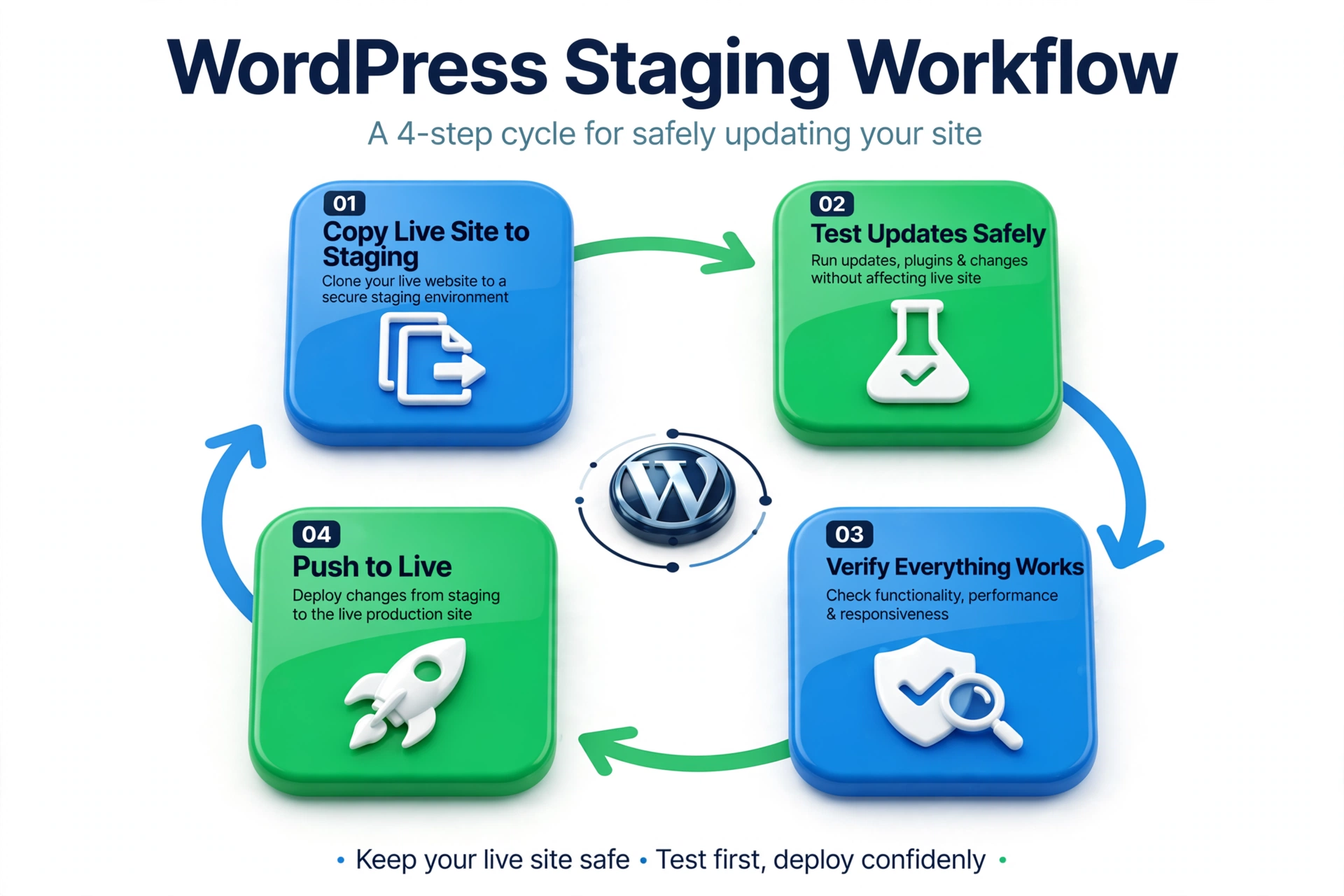
The WordPress staging workflow I use on client sites
Having a staging site is step one. Using it properly is step two. Here’s the exact routine I follow for every client update. It’s the same discipline behind the WordPress maintenance checklist I run on all the sites I look after.
- Start with a fresh copy. Before touching anything, I re-clone the live site to staging so I’m testing against today’s reality, not last month’s.
- Update in small batches. WordPress core first, then plugins in groups of three or four, checking the site after each batch. If something breaks, I know exactly which batch caused it.
- Test like a visitor, not a developer. I open the homepage, a product or service page, the contact form, and the checkout on both desktop and mobile. I click the buttons. I submit the form. Most bugs hide in the interactive bits.
- Push to live, then verify. I deploy the changes during a quiet period, clear every cache, and re-test the same key pages on the live site.
- Keep a fresh backup anyway. Staging prevents most disasters, but a backup taken right before pushing to live is your parachute. Belt and suspenders.
When NOT to bother with staging
Staging isn’t mandatory for everything. If you run a tiny personal blog with a handful of plugins and a backup you trust, updating directly is fine. Same if your site has almost no traffic yet: the cost of a brief glitch is near zero. And small content edits don’t need staging at all. The Customizer and the block editor already show you a preview before you publish. My rule of thumb: if the site earns money or generates leads, use staging. If breaking it for an hour would only embarrass you in front of your mum, skip it.
Frequently Asked Questions (FAQ)
Will Google index my staging site and penalize me for duplicate content?
No. Staging URLs from good hosts come password-protected and blocked from search engines automatically. If you set one up manually, add password protection through your hosting panel and tick “Discourage search engines” under Settings, then Reading. I’ve never seen a staging site cause a duplicate content issue when those two basics are in place.
Does a staging site slow down my live site?
No. It’s a separate copy with its own files and database tables. It uses a little disk space and almost no processing power when you’re not actively using it. Your visitors won’t notice any difference.
Is a staging site free?
Almost always, yes. SiteGround, Hostinger, Cloudways, and most managed WordPress hosts include one-click staging in their plans at no extra cost. The WP Staging plugin has a solid free version too. There’s no good cost excuse for updating blind.
Can’t I just rely on backups instead of staging?
They do different jobs. A backup is your recovery plan: when something breaks, you restore. Staging is your prevention plan: you find the problem before it ever reaches visitors. I use both on every client site. And if you’d rather not handle any of this yourself, that’s exactly what my WordPress website maintenance plans cover.
One habit, that’s all I’m asking for. The next time WordPress shows you a row of tempting update buttons, don’t click them on your live site first. Spin up that WordPress staging site, break things where nobody’s watching, and push to live with confidence. Your future self, calmly drinking coffee instead of restoring backups at midnight, will thank you.